
Introduction: deploy to the computer
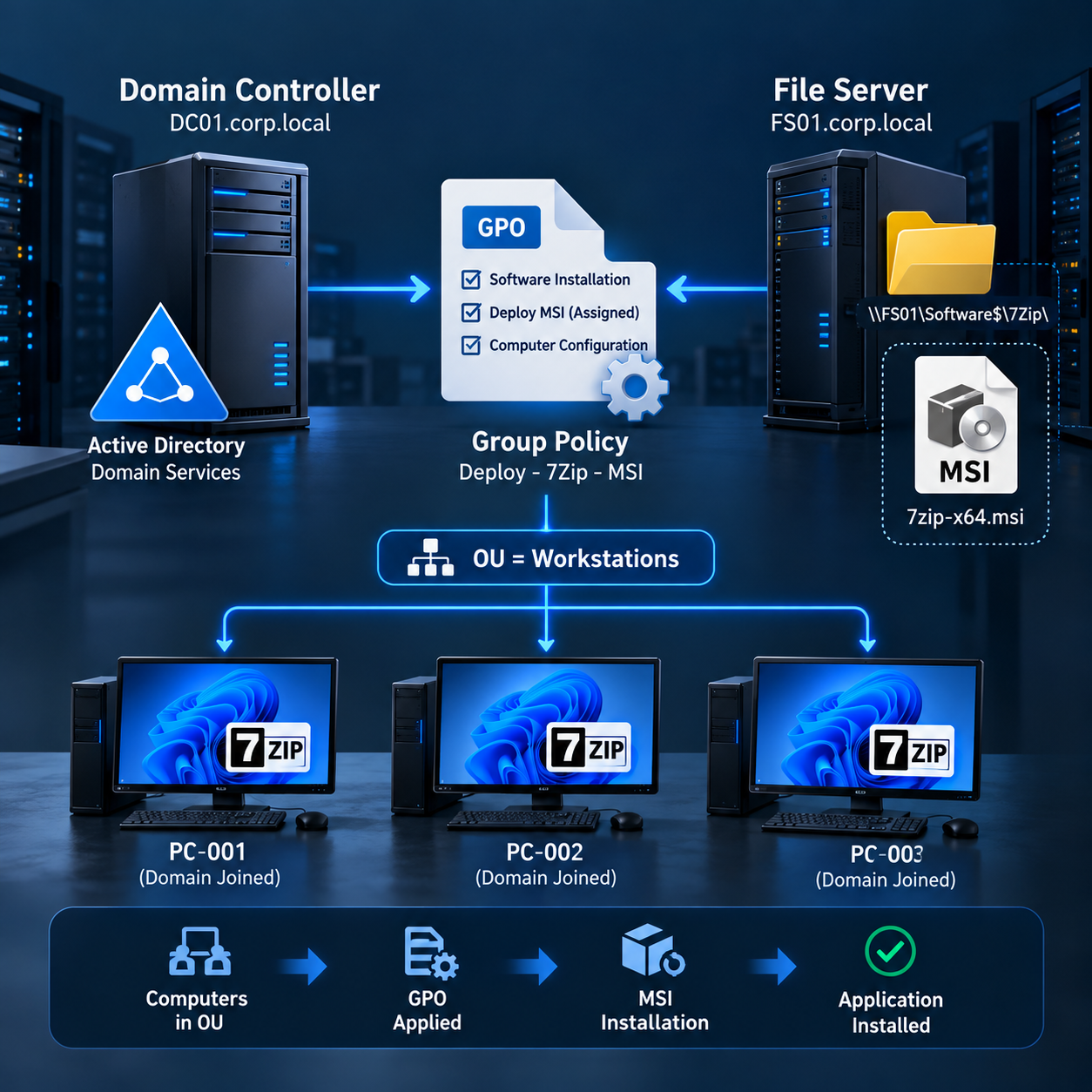
Group Policy Software Installation (GPSI) distributes Windows Installer packages through an Active Directory GPO. It suits a small set of predictable MSI applications on domain computers that can reach the corporate network during startup. The GPO describes the assignment; the client obtains the installer from a file share.
User Configuration targets user accounts and supports assignment or publication. Computer Configuration targets computer accounts and supports assignment only. We choose computer assignment for 7-Zip so installation does not depend on which employee signs in, and the application is available to every user of the workstation.
MSI provides installation metadata, product identity and Windows Installer maintenance behavior. An EXE is not a drop-in GPSI package. Confirm that the vendor's MSI supports unattended, per-machine installation before introducing it to production.
Lab scenario
Domain:             corp.local
Domain Controller:  DC01.corp.local
File Server:        FS01.corp.local
Target OU:          Workstations
Application:        7-Zip
MSI:                7zip-x64.msi
GPO: Deploy - 7Zip - MSIActive Directory
|
+-- OU=Workstations
|
+-- PC-001
+-- PC-002
+-- PC-003
|
+-- GPO: Deploy - 7Zip - MSI
File Server
|
+-- \\FS01\Software$\7Zip\7zip-x64.msiThese are lab names. 7zip-x64.msi is the chosen repository filename, not a claim about a vendor download name. Record the actual vendor version, source and hash before copying the approved x64 package under this name. Use the existing domain and its AD DNS in production.
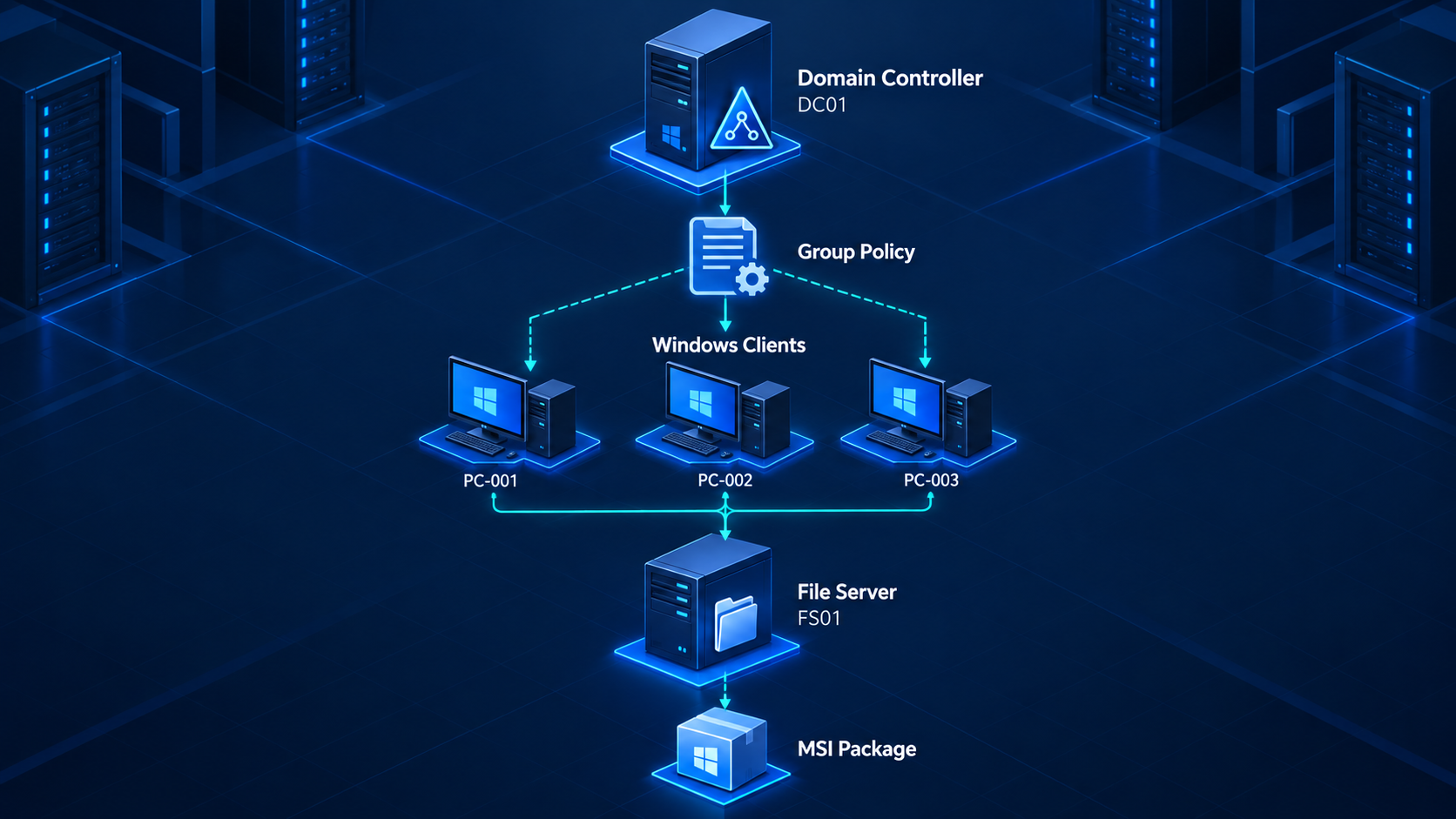
Deployment architecture
                Active Directory
                       |
                 Domain Controller
                    DC01
                       |
                    Group Policy
                       |
              Deploy - 7Zip - MSI
                       |
               OU = Workstations
                 /     |      \
                /      |       \
             PC-001  PC-002   PC-003
                \      |       /
                 \     |      /
                  File Server
                     FS01
                       |
             \\FS01\Software$
                       |
              7Zip\7zip-x64.msi
The diagram shows logical relationships, not a physical cable layout. DC01 provides policy and directory services; FS01 supplies package bytes. Successful GPO processing and successful MSI retrieval are separate checkpoints.
Prerequisites and compatibility
- An operational AD DS domain and reachable domain controller; a domain-joined FS01 with an NTFS volume and SMB file sharing.
- Domain-joined Windows 10/11 clients with an edition that supports AD domain join, matching x64 architecture and enough free disk space.
- GPMC on a management workstation with RSAT or on a Windows Server management host; delegated rights to create/edit a GPO and link it to the target OU.
- A vendor-provided MSI validated on the exact client OS and application version; preserve any required companion files and transforms.
- Clients use AD-aware DNS and can reach DC services, SYSVOL and FS01 over the required network paths. An Internet DNS resolver alone cannot discover your AD domain.
- Correct share, NTFS and GPO permissions; a maintenance window, pilot machines and an approved rollback plan.
The cited command references cover Windows Server 2016, 2019, 2022 and 2025 and Windows 10/11. The GroupPolicy PowerShell module requires GPMC/RSAT and is not present on every client. OS command compatibility does not certify a particular 7-Zip package or imply that every Windows 10 release remains in support; check the organization's supported release and servicing entitlement.
Share and NTFS permissions
Share permissions on Software$:
CORP\Domain Admins       Full Control
CORP\Domain Computers    Read

NTFS permissions on D:\SoftwareDistribution:
CORP\Domain Admins       Full Control
CORP\Domain Computers    Read & Execute
SYSTEM                   Full Control (local maintenance)
Set share permissions under Advanced Sharing → Permissions and NTFS permissions under Security → Advanced. Apply the computer read permissions to the repository, subfolders and installer files. Review inherited write permissions as well: a read entry does not cancel a write grant inherited from another group. Preserve required local SYSTEM and administrative access.
Computer-assigned installation runs in the system/computer context. On the network a domain member running as LocalSystem normally authenticates as its computer account, such as CORP\PC-001$. Domain Computers therefore needs access to read the MSI before a user signs in. Effective access must pass both share and NTFS checks; a denial at either layer blocks delivery.
Do not grant Everyone: Full Control. Clients need read access, never installer write access. A writable repository could let a compromised client replace a package that later runs with system privileges. In a mature environment, delegate repository maintenance to a controlled publishing group instead of using Domain Admins for daily work.
Test the UNC path
dir \\FS01\Software$\7ZipExpected result: the directory listing includes 7zip-x64.msi. File not found suggests a filename/folder mismatch; network path not found suggests name resolution, SMB or share availability; access denied points to identity or ACLs. This command tests the current user's access only.
Correct package location:
\\FS01\Software$\7Zip\7zip-x64.msi

Incorrect package location:
D:\SoftwareDistribution\7Zip\7zip-x64.msi
Type the UNC into the package dialog. A local D: path would refer to each client's own disk, and a mapped drive belongs to a user session. Neither identifies FS01 reliably during startup. In a pilot, also test access from a temporary scheduled task running as SYSTEM without stored user credentials, write its result to a local log, and remove the task afterward. Inspect effective access for PC-001$ on FS01; do not use a successful administrator browse as proof.
Start with a Test OU
corp.local
└── OU=GPO-Test
    ├── PC-GPO-TEST01
    └── PC-GPO-TEST02
Create GPO-Test and place two representative computer objects there. Link the deployment GPO to this OU first. Test a clean machine, a machine with an existing 7-Zip installation, startup network behavior, reboot time, removal and upgrade. Record the installed version and events.
After acceptance, link the approved GPO to Workstations with a small pilot group, then expand membership. If you move test computers into Workstations, review the baseline policies of both OUs and keep deployment coverage during the move. OU moves can change many settings and may trigger scope-based uninstall.
Create and link the GPO
gpmc.mscRun GPMC on the management host. Expand Forest → Domains → corp.local → Workstations. Right-click Workstations and select Create a GPO in this domain, and Link it here. Name it Deploy - 7Zip - MSI. During the test phase, use GPO-Test instead. A GPO stored under Group Policy Objects without a link does not target that OU.
corp.local
└── Workstations
    └── Deploy - 7Zip - MSI
Confirm Link Enabled and that Computer Configuration is enabled in GPO Status. The targets must be computer objects inside the linked OU or its applicable descendants. A user account in Workstations is not enough. Keep deployment settings in this application-specific GPO rather than modifying Default Domain Policy.
Configure Software Installation
Computer Configuration
→ Policies
→ Software Settings
→ Software installation
→ New
→ Package

\\FS01\Software$\7Zip\7zip-x64.msi

Deployment Method: Assigned
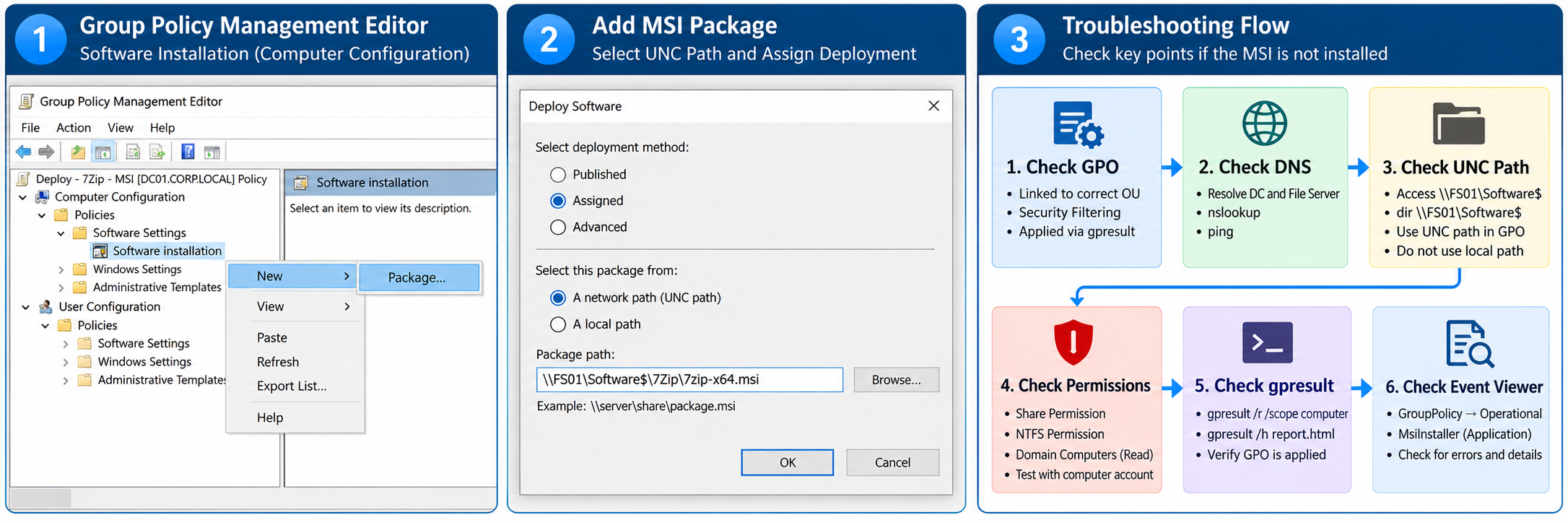
Right-click the GPO → Edit. Open the path above, right-click Software installation and choose New → Package. Enter the full UNC path and select Open → Assigned → OK. Wait until the package appears in the right pane; close the editor after confirming its deployment type and source.
Expected result: a package entry for the MSI, assigned under Computer Configuration. At a successful startup policy pass, the client installs it for the computer. Do not select Published for this scenario; computer packages cannot be published.
Network availability during startup
Computer Configuration
→ Policies
→ Administrative Templates
→ System
→ Logon
→ Always wait for the network at computer startup and logon

Setting: Enabled
Enable this for the pilot when fast startup/logon processing allows the desktop to appear before foreground policy completes. It makes startup and logon policy processing synchronous and is useful for software installation that needs the network at boot. Confirm the effective setting in RSoP.
Measure the added boot/logon delay before enabling it broadly. It cannot create connectivity to an unavailable DC, fix a broken DNS server or establish a VPN that only connects after sign-in. For Wi-Fi or remote clients, verify machine authentication and a usable pre-logon network path. Diagnose network initialization instead of treating this setting as a universal fix.
Apply policy and restart
On a pilot client, open an elevated Command Prompt and refresh policy. Save work and perform the restart only in the agreed maintenance window.
gpupdate /forceExpected result: computer policy updates successfully, possibly with a restart prompt. A refresh success confirms policy processing, not application installation. Computer Software Installation is processed at startup rather than as an immediate background install.
shutdown /r /t 0This restarts immediately. With Fast Logon Optimization, an initial cycle can schedule synchronous processing for the following startup, so another controlled restart may be needed. If diagnosing that behavior, gpupdate /target:computer /sync requests synchronous processing on the next foreground pass; it does not install the MSI itself.
Verify policy and installed application
gpresult /r /scope computerRun elevated. Expected result: Deploy - 7Zip - MSI appears under Applied Group Policy Objects for the computer. A GPO in this list establishes scope/application of policy; it does not prove that Windows Installer completed the package.
mkdir C:\Temp
gpresult /h C:\Temp\gpresult.html /f
If C:\Temp already exists, keep it and skip mkdir. Expected result: an HTML RSoP report at C:\Temp\gpresult.html. Open it and inspect Computer Details, applied/denied GPOs, filtering reasons and Software Installation settings.
dir "C:\Program Files\7-Zip\7z.exe"
"C:\Program Files\7-Zip\7z.exe" i
Expected result for the standard x64 package: the executable exists and the 7-Zip information header reports the approved version. Also check Installed apps/Programs and Features, launch 7-Zip as a standard user and test a small archive. Verify all three clients separately; folder existence alone is not a version or success check.
DNS and network troubleshooting
nslookup DC01.corp.local
nslookup FS01.corp.local
ping DC01.corp.local
ping FS01.corp.local
Expected result: nslookup returns the expected internal addresses for DC01 and FS01 using the configured DNS server. Ping should resolve each name to the expected IP; replies also indicate ICMP reachability when ICMP is allowed. A timeout can be a firewall decision and is not proof that the server is down.
ipconfig /all
nltest /dsgetdc:corp.local
dir \\corp.local\SYSVOL
Expected result: ipconfig shows the intended AD DNS servers; nltest discovers a domain controller and finishes successfully; SYSVOL can be listed under the tested identity. Resolving DC01's host record does not validate AD SRV discovery. Ping alone does not test Kerberos, LDAP, SMB, SYSVOL, ACLs or GPO processing.
Test-NetConnection FS01.corp.local -Port 445Expected result: TcpTestSucceeded is True. That verifies a TCP connection to SMB, not permission to read the MSI. If DC discovery fails, fix DNS/routing before editing package settings.
Additional Group Policy diagnostics
gpupdate /force
gpresult /r /scope computer
Capture the output before changing filters or links. If computer results say access is denied, elevate the terminal. If no RSoP data exists, confirm that the client has completed domain policy processing rather than assuming the MSI is the problem.
Get-GPResultantSetOfPolicy -ReportType Html -Path C:\Temp\RSoP.htmlRun in Windows PowerShell on a host with the GroupPolicy module and appropriate access; create C:\Temp first. Expected result: C:\Temp\RSoP.html contains logged policy results for the local session. This is an alternative report, not a deployment command. On a management host, add -Computer PC-001.corp.local to request that client's results, subject to remote RSoP/firewall permissions.
Event Viewer troubleshooting
Event Viewer
→ Applications and Services Logs
→ Microsoft
→ Windows
→ GroupPolicy
→ Operational

Windows Logs
→ Application
→ Source: MsiInstaller

Windows Logs
→ System
→ Source: Microsoft-Windows-GroupPolicy
Use the boot time of the failed attempt. In GroupPolicy Operational, correlate the processing instance by ActivityID and inspect the Software Installation extension, elapsed time, DC name and status. Application/MsiInstaller events identify the product and installation result. System GroupPolicy errors can expose network or SYSVOL failures. Save the actual message and decimal/hex error code rather than only an Event ID.
- 1129: investigate connectivity to a DC and the required services. 1058: inspect the referenced policy template/gpt.ini path, name resolution, access and AD/SYSVOL replication.
- MSI result 1612: installation source unavailable. 1619: package cannot be opened. Check source persistence, access and package validity.
- 1603: fatal installation failure, not a diagnosis by itself. Inspect MSI details, disk space, prerequisites and vendor custom actions. 1618: another installation is running.
- 1638: another version of the product is installed. 3010: success with restart required, not an installation failure.
Common Problems and Root Cause Analysis
GPO has not applied to the client
Check the computer object's distinguished name first: it must be in Workstations or an applicable child OU. Then inspect the GPO link, GPO Status, inheritance, Security Filtering (Read + Apply), WMI filter result and DC discovery. If clients disagree, compare the DC each used and check both AD and SYSVOL replication on the controllers. On a DC/RSAT host, repadmin /replsummary should show zero failures; that checks AD replication, so inspect DFS Replication/SYSVOL health separately.
repadmin /replsummaryGPO applies, but the MSI does not install
Compare the package's stored UNC with the actual file. Check share and NTFS effective access for the computer account, package architecture, per-machine support, prerequisites, existing versions and disk space. Correlate startup events with MsiInstaller. If there is no installation attempt, investigate foreground processing and network readiness before replacing the MSI.
The user can open the file, but GPO installation fails
A user's token can contain Domain Users or administrative groups that PC-001$ does not have. Repeat the source access test in SYSTEM context on the pilot and inspect the computer ACL. Do not add Domain Users or broad write permissions to compensate for missing computer access.
Network is unavailable at boot
Check Ethernet/Wi-Fi machine authentication, DHCP timing, DNS and any pre-logon VPN. Evaluate Always wait for the network at computer startup and logon on the pilot. If the network becomes usable only after user sign-in, the deployment design needs a startup-capable connection or another management tool.
The GPO is absent from gpresult
Run the elevated computer-scope report, then the HTML report. A Denied entry directs you to Security/WMI filtering; no entry directs you to OU placement, link/inheritance, disabled computer settings or failure to contact a DC. Refresh after fixing the cause and reboot after computer group membership changes. Compare a working pilot with the failing client using the same GPO revision.
Limit deployment with Security Filtering
Security group: GG-Deploy-7Zip
Members:        PC-001$, PC-002$, PC-003$

GPMC
→ Deploy - 7Zip - MSI
→ Scope
→ Security Filtering

Target group permissions:
Read              Allow
Apply Group Policy Allow
Create GG-Deploy-7Zip as a Global Security group in AD and add the target computer accounts, not their users. Select Computers in the object picker when adding members. In GPMC, add the group to Security Filtering. Its computer members still need to be inside the linked OU scope; a group does not replace a GPO link.
For a restricted rollout, remove the broad Apply grant from Authenticated Users and any other broad applying group. Keep Authenticated Users, or an appropriate computer read group, with Read only through Delegation → Advanced where needed. Verify that GG-Deploy-7Zip has both Read and Apply Group Policy and that no Deny overrides it. Read alone permits reading the GPO but does not apply it; leaving Authenticated Users with Apply defeats the restriction.
GPO permissions and repository permissions are independent. Filtering deployment to this group does not restrict file reads while Domain Computers retains share access. For stricter package access, use the same target group for repository Read after validating maintenance/repair needs. Allow AD replication and restart targets after adding computer group members so their machine authentication reflects the membership.
Enterprise Best Practices
\\FS01\Software$
│
├── 7Zip
│   └── 24.x
│       └── 7zip-x64.msi
│
├── Chrome
│   └── Enterprise
│       └── GoogleChromeStandaloneEnterprise64.msi
│
└── OtherApplications

Deploy - 7Zip - MSI
Deploy - Chrome - MSI
Deploy - ApplicationName - MSI
24.x is an illustrative version folder, not a recommendation to deploy an old release. Select an approved maintained version. For production, configure the package with the versioned UNC from the beginning; the shorter lab path illustrates the first deployment only.
- Keep one application per GPO and use a consistent naming convention. Keep related version upgrades documented within that application's deployment plan.
- Use immutable version folders. Record vendor source, version, SHA-256, package architecture, owner, deployment date and change ticket.
- Use a Test OU, then a small pilot security group, then staged expansion. Define success and rollback criteria before rollout.
- Store large installers on a file server rather than SYSVOL. Keep AD/SYSVOL replication focused on policy data and monitor repository capacity and SMB availability.
- Limit write access to approved maintainers, verify package provenance and back up both the software repository and the GPO. Test restore procedures.
- Retain source files while clients may need repair, removal or upgrade. Avoid changing the share hostname or deleting old packages during a rollout.
- Schedule restarts and communicate expected boot delays. A GPO report is not inventory: verify application versions on representative clients and track exceptions.
Uninstall and scope changes
Package → Properties → Deployment
→ Uninstall this application when it falls out of the scope of management
This is the GPMC label for the option often described as Remove this application when it falls out of the scope of management. When enabled, a managed computer installation can be removed at subsequent startup processing after the computer leaves deployment scope, such as moving to an OU where the application is not assigned. It is not a cleanup option for every manually installed copy.
Treat OU moves, security group removals and filter/link changes as application lifecycle changes. An accidental scope reduction can remove a production tool. Decide deliberately whether to enable the option, test the exact transition and keep a recovery path; losing connectivity is not itself an approved uninstall workflow.
Software installation
→ Package
→ All Tasks
→ Remove

1. Immediately uninstall the software from users and computers
2. Allow users to continue to use the software, but prevent new installations
The first choice schedules removal through policy processing, for computer assignments normally at startup, rather than instantly removing it from all running clients. The second leaves existing installations usable and stops new policy installations. Before confirming, review scope and rollback, back up the GPO and verify removal on the pilot. Do not delete the repository first.
Microsoft: managed application removal and deployment options
Upgrade and version management
7-Zip 24.x
    ↓
7-Zip New Version

\\FS01\Software$\7Zip\24.x\7zip-x64.msi
\\FS01\Software$\7Zip\NewVersion\7zip-x64.msi
Do not overwrite the old MSI in place and assume every client upgrades. ProductCode, UpgradeCode, PackageCode and the vendor's upgrade logic determine how Windows Installer treats a package. Preserve the previous source, copy the approved release into a new version directory and add it as a new package.
New package → Properties → Upgrades → Add
→ Current Group Policy object (or A specific GPO)
→ Select the previous package

Choose only after vendor/pilot validation:
• Package can upgrade over the existing package
• Uninstall the existing package, then install the upgrade package
Use the Upgrades relationship after checking whether the MSI supports an in-place upgrade or requires removal first. Do not infer that from the filename. On the pilot, check a clean install and an upgrade from the deployed version, retained settings, reboot requests and MSI events. Prevent competing old/new assignments and define how to recover if rollback requires uninstalling the new release.
Frequently asked questions
Can Software Installation deploy an EXE directly?
Not as an MSI package. Obtain the vendor's supported MSI or use a separate deployment method designed for EXE installers.
Why does the MSI not install immediately after gpupdate?
Computer Software Installation needs foreground startup processing. Refresh policy, then restart in a maintenance window with network access; synchronous processing may require a further startup cycle.
Why must I use a UNC path?
A UNC identifies the shared source for every client. Local disk paths and user mapped drives do not reliably identify that source in computer startup context.
Do Domain Users need access to the MSI?
Not for this computer-assigned scenario. Target computer accounts need repository read access. User deployments have different access requirements.
How do I deploy to only a few computers?
Add their computer accounts to GG-Deploy-7Zip, link the GPO to their OU and give the group Read plus Apply Group Policy. Remove broad Apply grants and restart after membership changes.
What if 7-Zip is already installed?
The result depends on the installed product identity, version, installation context and MSI upgrade rules. It may enter maintenance, upgrade or fail with a version conflict. Test existing installations in the pilot.
Does an applied GPO prove that installation succeeded?
No. Verify the application version, launch it as a standard user and correlate MsiInstaller events with the deployment attempt.
When to consider modern management tools
GPSI remains practical for simple MSI assignments on computers with startup access to the domain network. It provides neither a complete inventory nor a rich deployment reporting and compliance workflow. If the requirement grows to application lifecycle management, remote Internet clients or cloud management, evaluate Microsoft Intune or Microsoft Configuration Manager against the environment, licensing and operational needs.
Keep the choice proportional to the task: a small local deployment can stay with GPO, while a distributed fleet may need a platform that measures installation state and retries delivery without relying on a domain-connected boot.
Official references and validation scope
The procedures and command syntax were checked against the Microsoft references below. The scenario is a reproducible administration plan, not a report of a deployment executed on corp.local. Before production, validate the actual MSI, OS builds, ACL inheritance, network at boot, removal and upgrade in your own Test OU.
Microsoft Learn: MSI distribution
Microsoft Learn: Software Settings, upgrades and removal
Microsoft Learn: GPO scope and security filtering
Microsoft Learn: LocalSystem computer identity
Microsoft Learn: Get-GPResultantSetOfPolicy
Microsoft Learn: Logon optimization