
Remote support without opening RDP to every subnet
An employee in another office calls because a Windows application will not open. The technician cannot visit the desk, and a phone description does not reveal the error clearly. If the computer is already enrolled and support access is authorized, MeshCentral provides a way to investigate remotely.
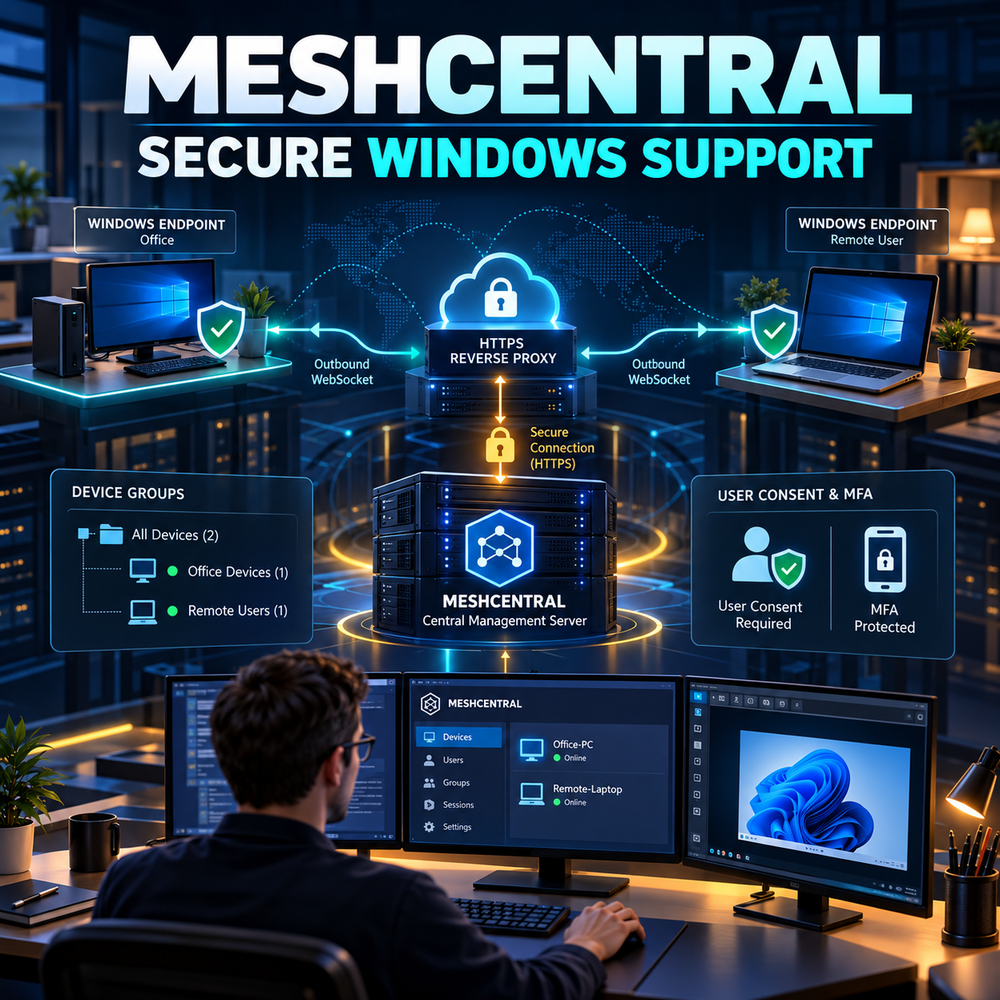
MeshCentral combines a central server with an Agent installed on the computer. The Agent identifies the device and maintains an outbound connection to the server. Technicians sign in to the web panel and see devices in groups they are permitted to manage. Remote Desktop provides screen viewing and control; Remote Terminal allows command execution. Each is a sensitive permission. Device groups can keep a branch support team within its assigned computers.
We will deploy MeshCentral 1.2.6 on Ubuntu 24.04 behind HTTPS, enroll a test Windows computer and verify permitted desktop or terminal access. Remote support must follow organizational authorization, notification and consent requirements. Installing an Agent does not itself authorize unrestricted access to an employee's screen or files.
Prerequisites
Use a supported release, a tested backup, administrative access, a maintenance window when required, and a rollback plan. Validate DNS, time synchronization, firewall rules, storage, and monitoring before implementation.
Architecture and Core Concepts
Understand the data flow, trust boundaries, dependencies, and the expected state before changing a live environment. Separate control-plane configuration from data-plane traffic and document every external dependency.
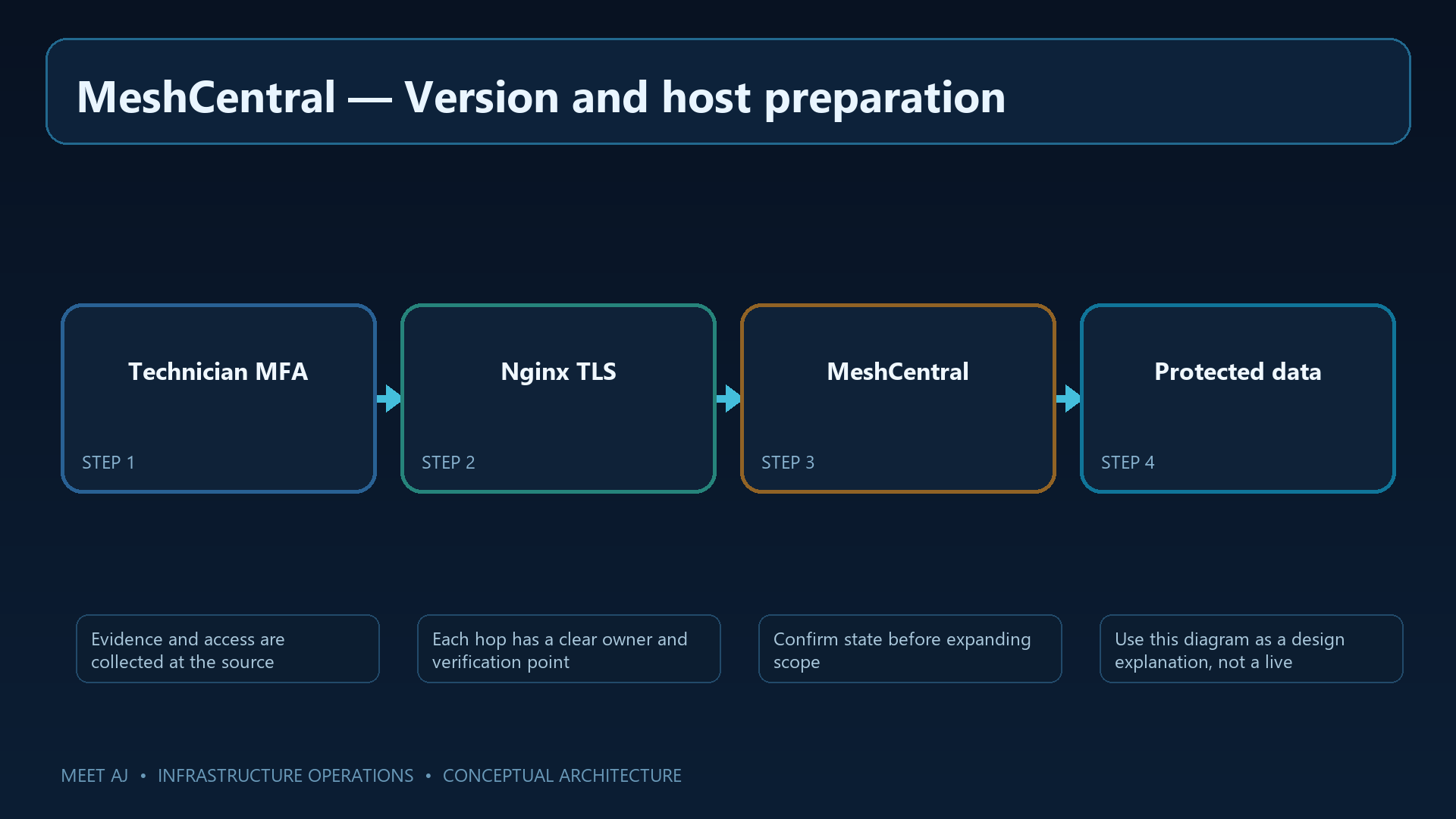
1. Version and host preparation
Prepare a dedicated Ubuntu 24.04 VM with stable DNS, synchronized time and protected persistent storage. The selected application release is 1.2.6 and the Node.js baseline is 22.22.0 LTS. Node runs the application; this MeshCentral release declares Node 20 as its minimum. Record the exact installed package revision for rollback.
Both technician browsers and Agents need to recognize the server through a valid hostname and certificate. HTTPS protects credentials and session traffic and helps authenticate the endpoint. Nginx accepts HTTPS on 443 and forwards requests to the internal service. Users and Agents should not reach that backend directly.
2. Install application and service
Run the application under a dedicated service identity rather than root. These commands prepare the Node repository, install a specific MeshCentral release and enable a systemd service. Review the repository setup script before executing it. Installing from the 22.x repository does not guarantee patch 22.22.0, so record node --version and the package revision.
Prepare the downloadable config.json for your deployment; meshcentral-config.json in the install command is the name of your prepared input file. Align the service definition and actual data path with that configuration using the options supported by 1.2.6. Copying a file to /var/lib/meshcentral alone does not make the process read it there. Retain the runtime version, package lock and confirmed data location in the deployment record.
sudo apt update && sudo apt install -y curl ca-certificates nginx
curl -fsSLo /tmp/nodesource_setup.sh https://deb.nodesource.com/setup_22.x
# Review the downloaded script and its source before execution; it configures the signed NodeSource apt repository.
sudo -E bash /tmp/nodesource_setup.sh
sudo apt install -y nodejs
node --version  # Record the exact 22.x patch and apt package revision for rollback.
sudo useradd --system --create-home --home-dir /opt/meshcentral --shell /usr/sbin/nologin meshcentral
sudo -u meshcentral npm install --prefix /opt/meshcentral meshcentral@1.2.6
sudo install -d -o meshcentral -g meshcentral -m 0750 /var/lib/meshcentral/meshcentral-data
sudo install -o meshcentral -g meshcentral -m 0640 meshcentral-config.json /var/lib/meshcentral/meshcentral-data/config.json
sudo install -o root -g root -m 0644 meshcentral.service /etc/systemd/system/meshcentral.service
sudo systemctl daemon-reload && sudo systemctl enable --now meshcentral
sudo systemctl status --no-pager meshcentral
Check systemctl status and service logs for the correct identity, readable configuration and valid data paths. Verify that the internal listener's address and protocol match the next section's proxy_pass and remain network-restricted. Complete those checks before publishing the server for enrollment.
3. Configure public URL and WebSocket proxy
MeshCentral's advertised server name must match the URL used by Agents and technicians. Nginx acts as a reverse proxy, forwarding requests to the internal application. Remote tools also need a persistent WebSocket channel, which is why the Upgrade/Connection headers and proxy timeout matter.
Replace mesh.example.invalid and the certificate paths, obtain certificates through your approved process and align application proxy/TLS settings with the chosen architecture. This proxy_pass expects HTTP at 127.0.0.1:3000; the backend must actually be configured for that mode. Allow 443 only from necessary networks and retain Agent certificate validation.
# /etc/nginx/sites-available/meshcentral
map $http_upgrade $connection_upgrade { default upgrade; '' close; }
server {
  listen 443 ssl http2;
  server_name mesh.example.invalid;
  ssl_certificate /etc/ssl/certs/mesh.example.invalid.pem;
  ssl_certificate_key /etc/ssl/private/mesh.example.invalid.key;
  location / {
    proxy_pass http://127.0.0.1:3000;
    proxy_http_version 1.1;
    proxy_set_header Host $host;
    proxy_set_header X-Forwarded-Proto https;
    proxy_set_header X-Forwarded-For $proxy_add_x_forwarded_for;
    proxy_set_header Upgrade $http_upgrade;
    proxy_set_header Connection $connection_upgrade;
    proxy_read_timeout 3600s;
  }
}
# Obtain and configure TLS using the organization's approved certificate workflow.
sudo nginx -t
nginx -t checks syntax only. After enabling the site through your normal Nginx process, verify hostname and certificate-chain trust from an allowed client. Test login and, after enrollment, an authorized remote tool; a visible web panel alone does not validate WebSocket forwarding.
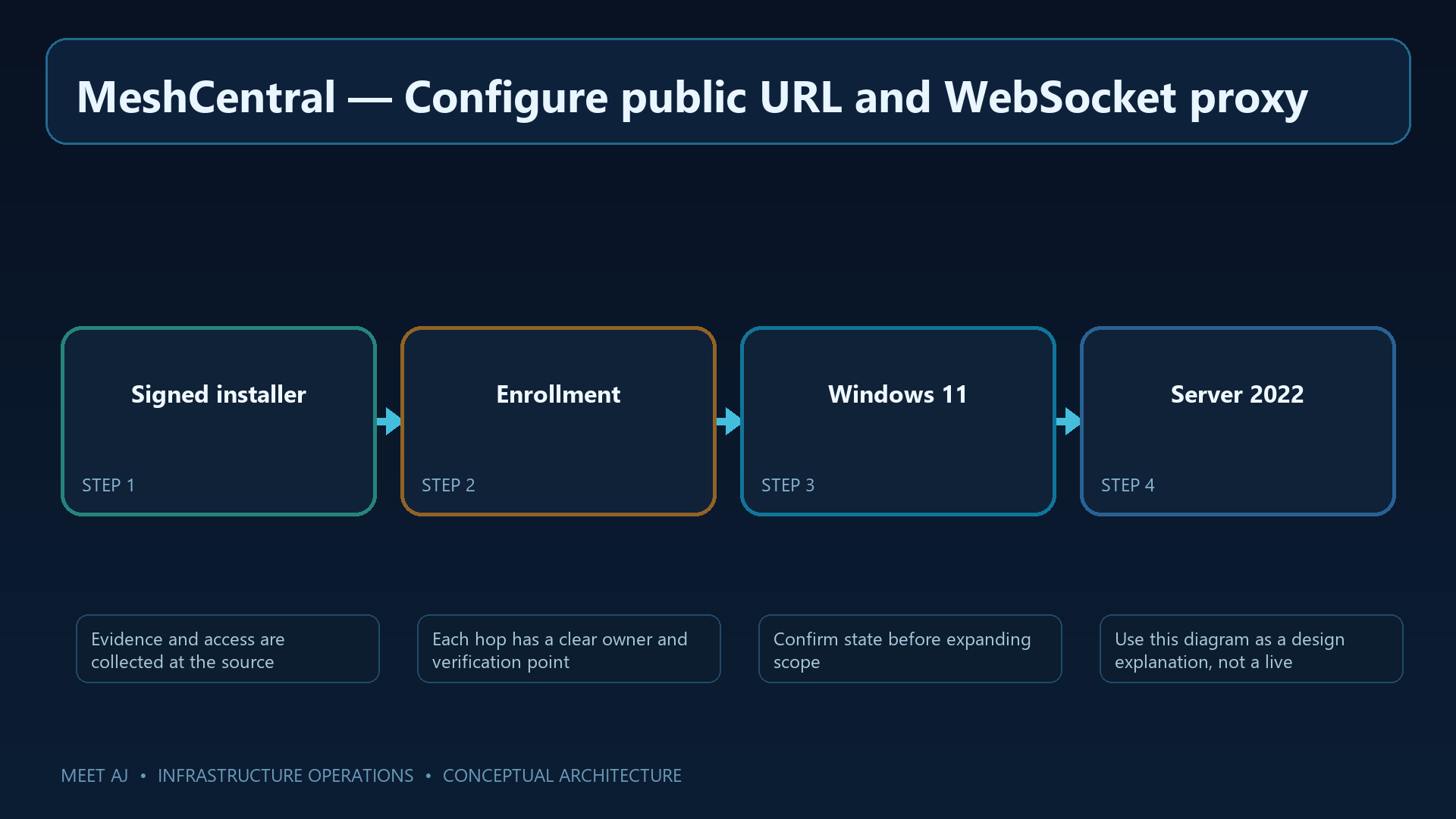
4. Enroll Windows 10/11 and Server 2022
Create a test device group and obtain its Agent package from the panel. Before distribution, check the intended server URL, file origin and signing status. Generating a package does not guarantee an organization-trusted digital signature; signing and distribution must follow your endpoint policy. Start with one authorized Windows 10/11 or Server 2022 computer.
The Agent supplies device status and the connection back to the server. After installation, confirm that the computer appears online in the intended group. Using a test technician account and required notification/consent, open Remote Desktop to inspect the screen or Remote Terminal for an observation-only command. Do not disable endpoint protection or user notifications to simplify enrollment.
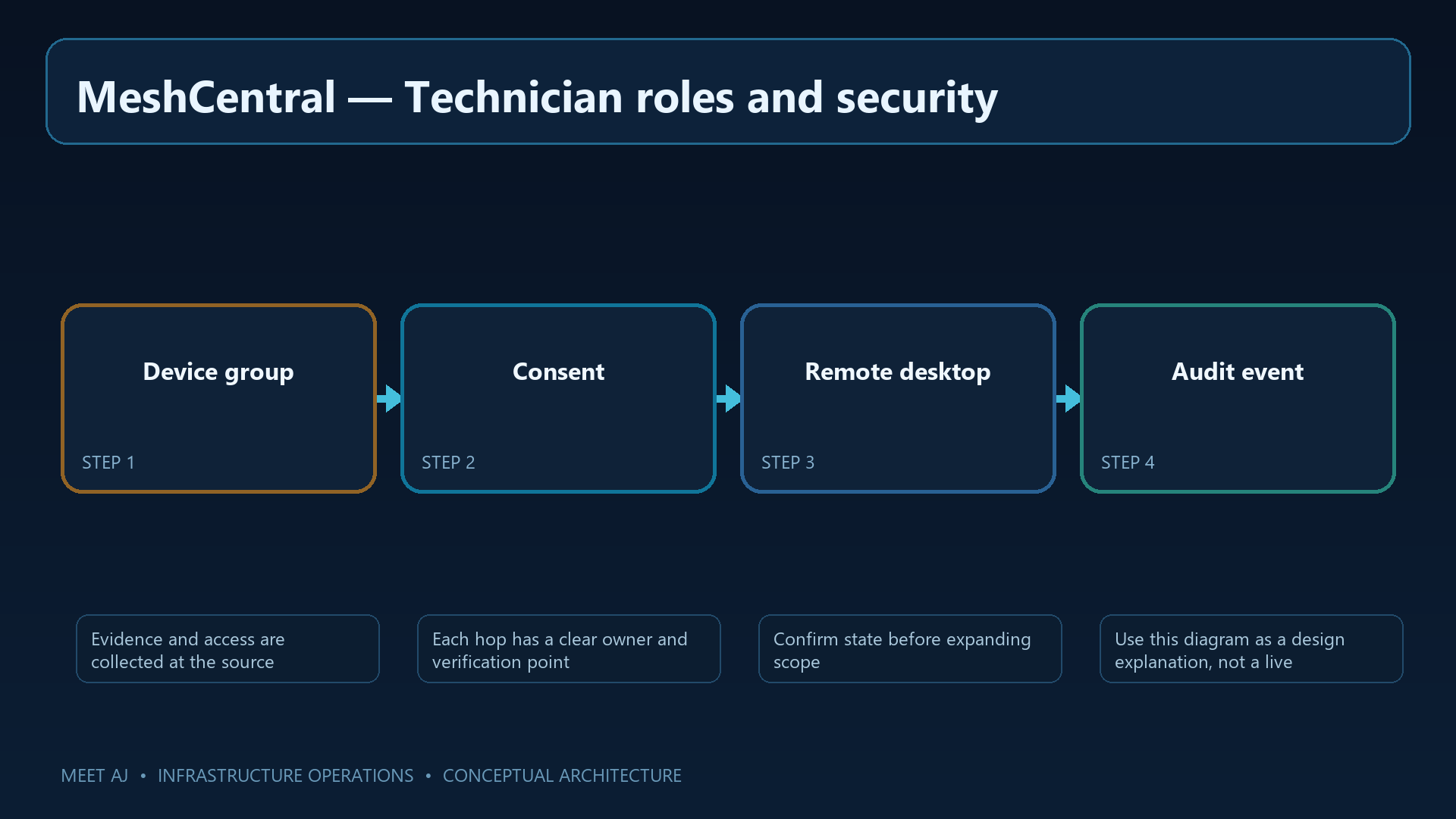
5. Technician roles and security
Grant screen, terminal and file rights separately according to each technician's role. Use named accounts and MFA, then test group permissions through an actual account with that role. Keep a controlled offline emergency administrator and restrict administrative access through VPN or approved source addresses.
Disable public account self-registration; that setting is distinct from Agent enrollment. Set explicit policy for unattended access, notification, consent and recording retention. Recording and audit features are not necessarily enabled automatically. Run a test session to establish which events are actually captured and who may read the logs or recordings.
6. Back up complete state and restore
An Agent's relationship with its server depends on protected server state as well as DNS. Back up persistent data, configuration, keys, dependent files, application/Node versions, certificates and any external database as a coordinated set. Losing part of that identity can disrupt enrolled Agents.
The block below illustrates archive paths. Include /etc/meshcentral only if your deployment actually uses it. Stop writes or use a supported consistent-backup method before copying state. The downloadable backup.sh includes service stop/restart handling; the short excerpt below does not. Encrypt the completed backup and store it off-host.
#!/usr/bin/env bash
set -euo pipefail
umask 077
STAMP=$(date -u +%F-%H%M%S); DEST=/backup/meshcentral/$STAMP
install -d -m 0700 "$DEST"
tar --numeric-owner -czf "$DEST/state.tgz" /opt/meshcentral/node_modules/meshcentral /var/lib/meshcentral /etc/meshcentral
sha256sum "$DEST/state.tgz" > "$DEST/SHA256SUMS"
# Encrypt and copy off-host. Restore the whole set to the same protected service account.
Restore first on an isolated host blocked from production Agents. Verify authentication, groups, permissions and protected state, then use a test Agent to check connectivity. Plan DNS cutover or production reconnection only after those checks and change approval. A valid archive checksum does not establish a working Agent relationship.
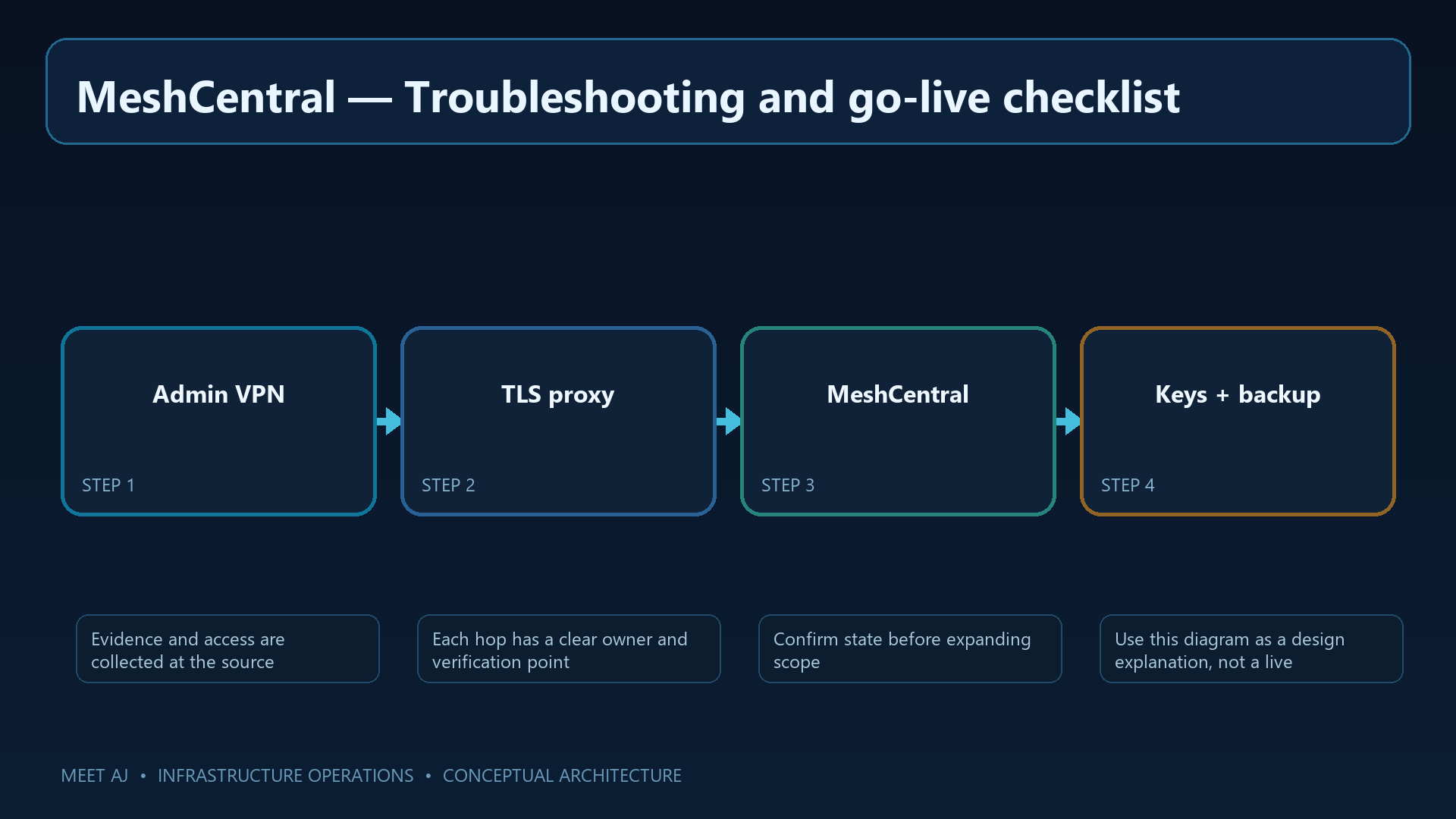
7. Troubleshooting and go-live checklist
For an offline Agent, inspect DNS, time, outbound HTTPS, certificate trust, server URL and enrollment state. If web login works but remote tools fail, check WebSocket forwarding, proxy timeouts and the backend protocol. Fix certificate names and trust chains rather than disabling validation.
Technician login failures may involve MFA, account policy or group rights; investigate the server log. Before operational use, verify MFA, restricted administration, approved Agent packages, consent/notification behavior, patch tracking and complete recovery. A rehearsed support call from another office, using the actual technician role and network path, is a useful acceptance exercise.
Complete a permitted support session
The enrolled test computer should appear in its group, and the technician should be able to open only the remote features assigned to that role. Confirm the required user notification, inspect the application problem, end the session and check its audit record. That closes the original support scenario while keeping authorization and privacy visible throughout.
Downloads
Official References
Troubleshooting
| Symptom | Cause / Check | Resolution |
|---|---|---|
| Service does not start | Check service status, logs, ports, permissions, and configuration syntax. | Fix the reported dependency or syntax error, then restart and verify health checks. |
| Clients cannot connect | Validate DNS, routing, firewall policy, TLS, and listening address from both endpoints. | Allow only the required source and destination, reload safely, and retest with a controlled client. |
| Change caused an outage | Compare the change with the last known-good version and inspect audit and application logs. | Rollback the smallest possible change, restore service, then document the root cause and prevention. |
Conclusion
A reliable implementation of Install MeshCentral on Ubuntu for Secure Windows Remote Management is more than a successful first run. Keep the configuration documented, observable, recoverable, and aligned with the team's change-management process.
FAQ
Does MeshCentral replace all RDP?
No. RDP remains a separate tool for some workflows; constrain both paths by policy.
Can agents connect directly to the server backend port?
No. Put public access through the TLS reverse proxy and a controlled firewall boundary.
Should unattended remote access be enabled by default?
No. Decide unattended access, consent and notifications under the organization's access policy.
What must be restored together?
Restore database/data, configuration, protected keys, certificates and a compatible application version together.