
Production scope and prerequisites
A successful gpupdate is not proof of an effective security control. This runbook combines exact policy paths, starting values, deployment scope and functional checks for System Administrators, Windows Server Administrators, Network Administrators and Infrastructure Engineers.
Scope: Microsoft AD DS, Windows Server 2022/2025, domain-joined Windows 10/11, GPMC and separate Workstations, Servers, Domain Controllers and Users OUs. All suggested values require alignment with organizational security policy, application dependencies and availability requirements.
Windows 10 22H2 reached general end of support on October 14, 2025. Production use requires an applicable ESU entitlement or migration; LTSC editions have separate lifecycle dates. GPO hardening does not replace security updates.
Record OS edition, build and patch level. Maintain versioned Windows, Office and Edge ADMX/ADML files in the Central Store. Check Supported on and the policy help against the target OS; a newer template does not add a feature to an older system. Paths below are in Group Policy Management Editor, reached by editing a GPO in GPMC.
\\<domain-fqdn>\SYSVOL\<domain-fqdn>\Policies\PolicyDefinitionsAssign one management authority to each setting: GPO, Intune, Configuration Manager or Microsoft Defender for Endpoint security settings management. Inventory conflicts before rollout.
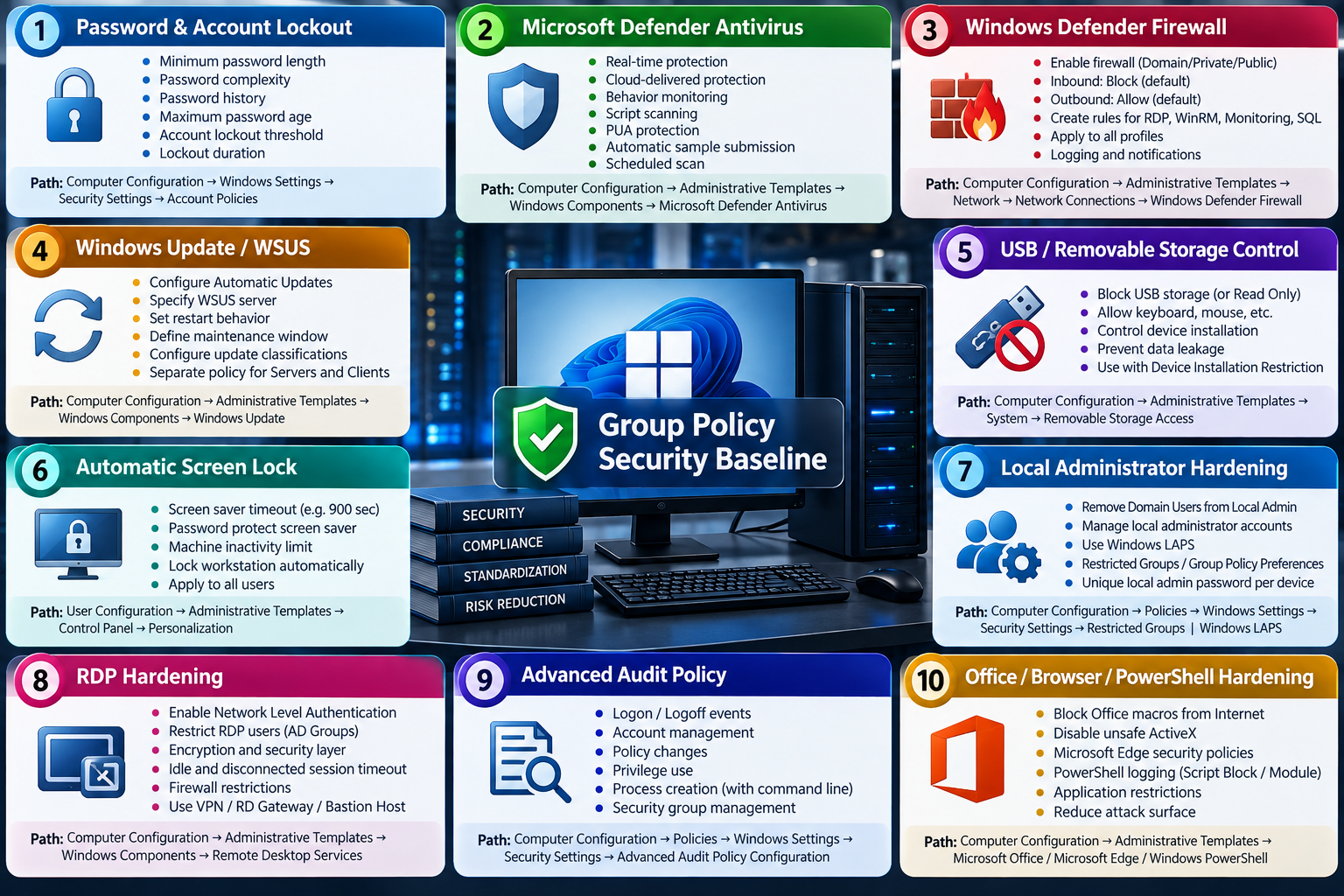
1. Password & Account Lockout Policy
Purpose: reduce password reuse and online guessing. Scope: the domain default policy for domain accounts; local account policy on member computers is a separate scope.
Computer Configuration
→ Policies
→ Windows Settings
→ Security Settings
→ Account Policies
→ Password Policy

Computer Configuration
→ Policies
→ Windows Settings
→ Security Settings
→ Account Policies
→ Account Lockout Policy| Policy | Starting value | Operational consideration |
|---|---|---|
| Enforce password history | 24 passwords | Discourage reuse; combine with minimum age. |
| Minimum password length | 14 characters | Prefer longer passphrases; validate legacy applications. |
| Password must meet complexity requirements | Enabled | Does not itself block all common passwords. |
| Minimum password age | 1 day | Prevents rapid cycling through history. |
| Maximum password age | 0 with compensating controls; e.g. 90 days only if mandated | Choose through organizational security policy. |
| Account lockout threshold | 10 invalid attempts | Monitor spraying and accidental lockouts. |
| Account lockout duration | 15 minutes | Avoid permanent lockout without a recovery process. |
| Reset account lockout counter after | 15 minutes | Must not exceed lockout duration. |
| Store passwords using reversible encryption | Disabled | Enable only for a documented exceptional dependency. |
Periodic expiration is not a universal modern recommendation. Maximum age 0 requires compromise detection and prompt reset of exposed credentials, stronger password controls and MFA on services that support it. A very low lockout threshold can cause denial of service; 10 is an initial baseline, not protection against every spraying attack.
Domain policy and Fine-Grained Password Policy
Link the authoritative domain Password/Account Policy at the domain root, usually retaining these settings in Default Domain Policy. A password GPO linked to the Users OU does not create a distinct password policy for those domain users. To apply different values to privileged users, use a Fine-Grained Password Policy (PSO) on users or global security groups, managed with ADAC or ActiveDirectory PowerShell; FGPP is not linked to an OU.
Deploy: validate domain account behavior in a test domain, or pilot a PSO on test users. A Test OU on member computers validates local accounts, not the domain default policy. Review service credentials before changing expiration or lockout behavior.
Get-ADDefaultDomainPasswordPolicy
Get-ADUserResultantPasswordPolicy -Identity 'pilot.user'
Search-ADAccount -LockedOut -UsersOnly
Verify: no resultant PSO output means the default domain policy applies. Use a disposable user to test short/reused password rejection and controlled lockout; never deliberately lock a production service account.
2. Microsoft Defender Antivirus Hardening
Computer Configuration
→ Policies
→ Administrative Templates
→ Windows Components
→ Microsoft Defender Antivirus| Policy below the base path | Value |
|---|---|
| Turn off Microsoft Defender Antivirus | Disabled |
| Real-time Protection → Turn off real-time protection | Disabled |
| Real-time Protection → Turn on behavior monitoring | Enabled |
| Real-time Protection → Monitor file and program activity on your computer | Enabled |
| Real-time Protection → Turn on script scanning | Enabled |
| MAPS → Join Microsoft MAPS | Enabled: Advanced MAPS |
| MAPS → Send file samples when further analysis is required | Enabled: Send safe samples |
| MAPS → Configure the “Block at First Sight” feature | Enabled |
| Configure detection for potentially unwanted applications | Enabled: Block |
| Scan → Specify the scan type to use for a scheduled scan | Enabled: Quick scan |
| Scan → Specify the day of the week to run a scheduled scan | Enabled: Every day |
| Scan → Specify the time of day to run a scheduled scan | 120 (02:00) |
| Scan → Check for the latest virus and spyware definitions before running a scheduled scan | Enabled |
Purpose: protect endpoints against malware, suspicious behavior and unwanted software. Time is minutes after midnight. Daily quick scans are a starting point; test catch-up behavior for powered-off laptops and workload impact on servers. Cloud protection needs approved network access, and sample submission needs agreement with data-handling policy.
Tamper Protection cannot be enabled or disabled through GPO. Changes to protected settings may be blocked even when policy processing appears successful. Check effective state and use the supported central management workflow.
Deploy: pilot clients and representative server roles independently. On Windows 10/11, third-party antivirus, onboarding and configuration can change Active/Passive behavior. Microsoft Defender for Endpoint adds EDR and central security management; installed Defender Antivirus alone is not MDE onboarding. Choose one settings owner and keep exclusions narrow, justified and reviewed.
Get-MpComputerStatus | Select-Object AMRunningMode, AntivirusEnabled,
    RealTimeProtectionEnabled, BehaviorMonitorEnabled, IsTamperProtected,
    AntivirusSignatureLastUpdated
Get-MpPreference | Select-Object DisableRealtimeMonitoring,
    DisableBehaviorMonitoring, DisableScriptScanning, MAPSReporting,
    SubmitSamplesConsent, PUAProtection, ScanParameters, ScanScheduleTime
Start-MpScan -ScanType QuickScan
Verify effective state, signature freshness, quick-scan completion and cloud connectivity. False on a Disable-prefixed preference normally means that feature is enabled; pay attention to inverted policy names.
3. Windows Defender Firewall
Computer Configuration
→ Policies
→ Windows Settings
→ Security Settings
→ Windows Defender Firewall with Advanced Security
→ Windows Defender Firewall with Advanced Security
→ Properties| Profile | Firewall State | Inbound | Outbound |
|---|---|---|---|
| Domain | On | Block | Allow |
| Private | On | Block | Allow |
| Public | On | Block | Allow |
Purpose: control host exposure and lateral movement. Inbound Block still permits matching Allow rules; Block all connections is a different option. An internal attacker may never cross the perimeter firewall, so disabling the host firewall removes an important enterprise boundary. Some console versions omit Defender in the displayed node name.
Windows Defender Firewall with Advanced Security → Inbound Rules → New Rule → Custom| Service | Example port | Approved remote source |
|---|---|---|
| RDP | TCP 3389; UDP 3389 if needed | Jump server / management VPN |
| WinRM | TCP 5985 or HTTPS 5986 | Management servers |
| Monitoring | Agent-specific | Named collectors only |
| SQL Server | TCP 1433 if configured | Application servers only |
Specify protocol, local port, program/service, remote IP and profiles. SQL named instances can use dynamic ports; configure a fixed port where practical, and allow UDP 1434 only when SQL Browser is needed. WinRM 5985 with Kerberos can use message encryption; HTTPS requires a working listener and trusted certificate. A firewall rule does not start a service or create a listener.
Deploy: prepare management allow rules before enforcement, retain console/OOB access and test server role traffic. Review broad existing allow rules and local rule merging. Enable dropped-packet logging with a suitable size and collection plan.
Get-NetFirewallProfile -PolicyStore ActiveStore |
    Select-Object Name, Enabled, DefaultInboundAction, DefaultOutboundAction
Get-NetFirewallRule -PolicyStore ActiveStore |
    Where-Object DisplayName -Like 'MeetAJ-*'
Test-NetConnection -ComputerName 'srv01.corp.example' -Port 3389
Verify from both allowed and denied source networks. Success from an allowed source alone does not prove access restrictions. Outbound Allow is an initial compatibility setting, not an outbound least-privilege allowlist.
4. Windows Update / WSUS Policy
Purpose: patch reliably without unplanned service interruption. Use separate client and server policies and patch rings; do not apply a workstation restart schedule to an enterprise server OU.
GPO-OPS-WindowsUpdate-Clients
GPO-OPS-WindowsUpdate-Servers

Computer Configuration
→ Policies
→ Administrative Templates
→ Windows Components
→ Windows Update
→ Manage end user experience
→ Configure Automatic Updates

Windows Update
→ Manage updates offered from Windows Server Update Service
→ Specify intranet Microsoft update service location
Older ADMX versions show these settings directly beneath Windows Update. Configure the update service and statistics service URLs to match the deployed WSUS topology; the common ports are 8530 for HTTP and 8531 for HTTPS. Use HTTPS only after TLS is correctly configured.
https://wsus.corp.example:8531| Policy | Clients | Servers |
|---|---|---|
| Configure Automatic Updates | Enabled: 4 — scheduled installation | 3 with orchestrated installation; or 4 in an approved standalone window |
| Specify intranet Microsoft update service location | Configured WSUS URLs | Configured WSUS URLs |
| Active Hours | 08:00–18:00 | Service-specific; check OS support |
| Restart deadlines | According to patch SLA | According to service dependencies and change window |
Windows Update → Manage end user experience
→ Turn off auto-restart for updates during active hours

Windows Update → Legacy Policies (newer ADMX)
→ No auto-restart with logged on users for scheduled automatic updates installations
The logged-on-users setting has a specific scheduled-installation scope; it is not a universal no-reboot guarantee. Review deadlines and legacy policy interactions. Active Hours controls restarts, not a complete installation or failover maintenance window.
WSUS approval and GPO alone do not orchestrate SQL, Hyper-V or cluster maintenance. Option 3 can leave downloads uninstalled if no installation workflow exists. Implement pre-check, drain/failover, install, reboot, health check and return-to-service through a central tool or runbook.
Deploy: approve updates to a pilot ring first, then broad clients and role-based server rings. Verify scan source, last contact, compliance, actual installed update and application health after reboot.
Get-ItemProperty 'HKLM:\SOFTWARE\Policies\Microsoft\Windows\WindowsUpdate'
Get-ItemProperty 'HKLM:\SOFTWARE\Policies\Microsoft\Windows\WindowsUpdate\AU'
Get-WinEvent -LogName 'Microsoft-Windows-WindowsUpdateClient/Operational' -MaxEvents 30
Registry values prove configuration presence, not patch installation. If WSUS and cloud update management coexist, explicitly assign scan sources and avoid contradictory policies.
5. USB / Removable Storage Control
Computer Configuration
→ Policies
→ Administrative Templates
→ System
→ Removable Storage Access
Purpose: reduce removable-media malware and data exfiltration. The table applies to Removable Disks: Deny read access, Deny write access and Deny execute access; it is not a blanket USB bus block.
| Mode | Deny read | Deny write | Deny execute |
|---|---|---|---|
| Allow | Disabled | Disabled | Enabled recommended; Disabled for full allow |
| Read Only | Disabled | Enabled | Enabled |
| Block | Enabled | Enabled | Enabled |
All Removable Storage classes: Deny all access blocks more storage classes and overrides individual access settings. Leave it disabled when implementing Read Only. Phones using WPD/MTP may need separate policies. Keyboard and mouse are not removable disks.
Computer Configuration
→ Policies
→ Administrative Templates
→ System
→ Device Installation
→ Device Installation Restrictions
Device Installation Restrictions controls device installation by IDs/classes, not just file access. Broad USB installation blocks may disable keyboards, docks, smart-card readers or industrial equipment. Use narrow allowlists where necessary.
Deploy: pilot on ordinary and specialist workstations, with a documented exception group and review date. Verify read, write and execution separately using a disposable USB. Test keyboard, mouse and dock; reconnect or reboot if the policy requires it.
6. Automatic Screen Lock
Computer Configuration
→ Policies
→ Windows Settings
→ Security Settings
→ Local Policies
→ Security Options
→ Interactive logon: Machine inactivity limit

Recommended: 900 seconds (15 minutes)
Purpose: protect abandoned interactive sessions. Use 300–600 seconds for public or sensitive workstations when justified; 0 disables the inactivity limit. Validate display power settings that may cause an earlier lock.
User Configuration
→ Policies
→ Administrative Templates
→ Control Panel
→ Personalization

Enable screen saver = Enabled
Password protect the screen saver = Enabled
Screen saver timeout = Enabled: 900 seconds
Force specific screen saver = valid approved .scr, if required (e.g. scrnsave.scr)
Deploy: link the computer policy to Workstations; link screen-saver user policy to the user OU. Linking user settings only to a computer OU is insufficient without deliberately configured loopback. Activate a valid screen saver and test the target environment.
Get-ItemProperty 'HKLM:\SOFTWARE\Microsoft\Windows\CurrentVersion\Policies\System' -Name InactivityTimeoutSecsVerify by leaving a pilot session idle and checking that reauthentication is required. Exemptions for kiosks and control-room systems need a separate reviewed design; do not impose workstation behavior blindly on these systems.
7. Local Administrator Hardening & Windows LAPS
Two independent controls are required: group membership determines who is an administrator; LAPS manages a local account password. Remove Domain Users, Authenticated Users and broad support groups from Local Administrators; inspect nested group access, not just direct members.
GG-Workstation-LocalAdmins
GG-Server-LocalAdmins

Computer Configuration
→ Policies
→ Windows Settings
→ Security Settings
→ Restricted Groups

Computer Configuration
→ Preferences
→ Control Panel Settings
→ Local Users and Groups| Method | Behavior | Risk / use |
|---|---|---|
| Restricted Groups: Members of this group | Enforces members of the target group; removes unspecified members where permitted. | Complete reviewed allowlist; preserve recovery access. |
| Restricted Groups: This group is a member of | Adds the selected group to the destination group. | Does not cleanse all other destination members. |
| GPP Local Users and Groups: Update | Add/remove specified members. | Review Delete all member users/groups carefully. |
A wrong membership allowlist can remove legitimate support access. Avoid competing Restricted Groups/GPP definitions and unreviewed Replace actions. Apply local-group designs to workstations and member servers; a DC does not have the same local SAM group model.
A shared local administrator password or hash can enable compromise across many computers after one endpoint is breached. Do not distribute passwords using GPP. Audit legacy SYSVOL files containing cpassword and rotate affected credentials.
Modern Windows LAPS configuration
Computer Configuration
→ Policies
→ Administrative Templates
→ System
→ LAPS| Policy | Recommended starting configuration |
|---|---|
| Configure password backup directory | Enabled: Active Directory |
| Password Settings | Length 20; age 30 days; upper/lowercase + digits + special characters |
| Enable password encryption | Enabled, when prerequisites are met |
| Configure authorized password decryptors | Dedicated restricted recovery group |
| Do not allow password expiration time longer than required by policy | Enabled |
| Post-authentication actions | Reset password; pilot any logoff/reboot action |
Windows LAPS creates unique rotating passwords and backs them up to AD or Entra ID; this runbook uses AD. AD password encryption requires at least Windows Server 2016 domain functional level. Schema permissions, read permissions and authorized decryption are distinct. Newer automatic account management/passphrase settings require compatible OS builds and templates; a Server 2025 installation does not prove the domain functional level.
Deploy: confirm Windows LAPS servicing updates, schema change approval and AD replication, then delegate narrowly and link to a pilot OU. For a custom local account on versions without automatic account management, create the account separately; LAPS does not create it. The built-in Administrator can be identified by RID even after renaming.
# Approved schema extension; run with appropriate rights
Update-LapsADSchema
Set-LapsADComputerSelfPermission -Identity 'OU=Workstations,DC=corp,DC=example'
Find-LapsADExtendedRights -Identity 'OU=Workstations,DC=corp,DC=example'

# On the pilot endpoint
Get-LocalGroupMember -SID 'S-1-5-32-544'
Invoke-LapsPolicyProcessing

# On an authorized administration host
Get-LapsADPassword -Identity 'PC-PILOT-01'
Delegate retrieval/reset rights with Set-LapsADReadPasswordPermission and Set-LapsADResetPasswordPermission to approved groups; ensure Configure authorized password decryptors matches the recovery design. Verify Microsoft-Windows-LAPS/Operational, authorized recovery and post-use rotation. Do not save plaintext passwords in tickets or screenshots.
8. RDP Hardening
Computer Configuration
→ Policies
→ Administrative Templates
→ Windows Components
→ Remote Desktop Services
→ Remote Desktop Session Host
→ Security| Policy | Value |
|---|---|
| Require user authentication for remote connections by using Network Level Authentication | Enabled |
| Require use of specific security layer for remote (RDP) connections | Enabled: SSL |
| Set client connection encryption level | Enabled: High Level |
| Always prompt for password upon connection | Enabled after SSO review |
Purpose: reduce unauthorized remote access. SSL is the displayed policy option for the TLS security layer; provision a trusted certificate with the correct name and validate negotiation. High Level does not replace certificate validation.
Remote Desktop Session Host
→ Session Time Limits

Set time limit for active but idle Remote Desktop Services sessions = 15 minutes
Set time limit for disconnected sessions = 30 minutes
End session when time limits are reached = workload-specific, pilot before enabling

Computer Configuration
→ Policies
→ Windows Settings
→ Security Settings
→ Local Policies
→ User Rights Assignment
→ Allow log on through Remote Desktop Services
→ Deny log on through Remote Desktop Services
Restrict Remote Desktop Users and user rights to approved groups. Deny takes precedence over Allow, including administrators who belong to a denied group. Disconnect differs from logoff; session termination can destroy unsaved work. Combine domain/local account lockout with source-restricted firewall rules.
Do not expose RDP directly to the Internet. Use an MFA-protected VPN, RD Gateway or a controlled jump server/bastion. These access systems also need patching, trusted TLS and narrow authorization.
Deploy to a pilot with console access. Verify a new connection by an authorized user, rejection of an unauthorized user/source, NLA, certificate trust and actual idle/disconnected behavior.
Get-CimInstance -Namespace 'root\cimv2\terminalservices' `
    -ClassName Win32_TSGeneralSetting -Filter "TerminalName='RDP-tcp'" |
    Select-Object UserAuthenticationRequired, SecurityLayer, MinEncryptionLevel
quser
9. Advanced Audit Policy
Computer Configuration
→ Policies
→ Windows Settings
→ Security Settings
→ Advanced Audit Policy Configuration
→ Audit Policies| Category → Subcategory | Starting audit flags | Target / note |
|---|---|---|
| Logon/Logoff → Audit Logon | Success + Failure | All endpoints |
| Logon/Logoff → Audit Logoff | Success | All endpoints |
| Logon/Logoff → Audit Account Lockout | Failure | All endpoints |
| Logon/Logoff → Audit Special Logon | Success | All endpoints |
| Account Logon → Audit Credential Validation | Success + Failure | DCs and local account validation |
| Account Logon → Audit Kerberos Authentication Service | Success + Failure | DCs |
| Account Logon → Audit Kerberos Service Ticket Operations | Success + Failure | DCs; assess volume |
| Account Management → Audit User Account Management | Success + Failure | DCs and local accounts |
| Account Management → Audit Computer Account Management | Success + Failure | Especially DCs |
| Account Management → Audit Security Group Management | Success + Failure | DCs and local groups |
| Policy Change → Audit Audit Policy Change | Success + Failure | All endpoints |
| Policy Change → Audit Authentication Policy Change | Success | All endpoints |
| Privilege Use → Audit Sensitive Privilege Use | Success + Failure | Assess workload volume |
| Detailed Tracking → Audit Process Creation | Success | All endpoints |
Purpose: produce usable investigation evidence. Account Logon tracks credential validation; Logon tracks sessions on the destination host. Select subcategories by role and SIEM capacity rather than enabling everything indiscriminately.
Computer Configuration
→ Policies
→ Windows Settings
→ Security Settings
→ Local Policies
→ Security Options
→ Audit: Force audit policy subcategory settings (Windows Vista or later)
   to override audit policy category settings = Enabled

Computer Configuration
→ Policies
→ Administrative Templates
→ System
→ Audit Process Creation
→ Include command line in process creation events = Enabled
Command-line capture requires Audit Process Creation. Event 4688 can then contain arguments in plaintext, including secrets. Limit log access and avoid putting credentials in command-line arguments.
| Event ID | Meaning / investigation value |
|---|---|
| 4624 | Successful logon; inspect logon type and source. |
| 4625 | Failed logon; inspect status/substatus. |
| 4720 | User account created. |
| 4726 | User account deleted. |
| 4728 | Member added to a security-enabled global group. |
| 4732 | Member added to a security-enabled local group; local SAM or domain-local context. |
| 4688 | New process; command line when separately enabled. |
| 4740 | Account locked out. |
| 4719 | System audit policy changed. |
| 1102 | Security log cleared. |
Deploy separate role-aware audit settings and log sizes. Forward via WEF or a supported agent to SIEM, Microsoft Sentinel, Splunk, Graylog or Wazuh. Audit GPO alone does not configure forwarding. Set retention, collection health monitoring and alert ownership.
auditpol /get /category:*

Get-WinEvent -FilterHashtable @{
    LogName = 'Security'
    Id = 4624,4625,4720,4726,4728,4732,4688
    StartTime = (Get-Date).AddHours(-1)
}
Verify by generating a controlled failed logon and harmless process, then confirm local events, central ingestion and alert delivery. Audit volume and confidential arguments are production design constraints.
10. Office / Browser / PowerShell Hardening
Office macros and ActiveX
User Configuration
→ Policies
→ Administrative Templates
→ Microsoft Word 2016
→ Word Options
→ Security
→ Trust Center
→ Block macros from running in Office files from the Internet = Enabled

Microsoft Excel 2016 → Excel Options → Security → Trust Center
→ Block macros from running in Office files from the Internet = Enabled

Microsoft Office 2016 → Security Settings
→ Disable All ActiveX = Enabled (where present in the installed Office ADMX)
Purpose: block common malicious document execution paths. Office templates may retain the 2016 product label for newer releases; verify support for the installed Office build. Internet macro blocking relies on origin signals such as Mark of the Web. Broad trusted locations and removing MOTW weaken the control. Distribute approved macros through narrow, signed, owned workflows and test legacy ActiveX dependencies.
Microsoft Edge security policies
Computer Configuration
→ Policies
→ Administrative Templates
→ Microsoft Edge
→ SmartScreen settings

Configure Microsoft Defender SmartScreen = Enabled
Prevent bypassing Microsoft Defender SmartScreen prompts for sites = Enabled
Prevent bypassing of Microsoft Defender SmartScreen warnings about downloads = Enabled
Install MSEdge ADMX/ADML. Use mandatory policies rather than Microsoft Edge - Default Settings (users can override). Review extension permissions and maintain an approved allowlist without breaking required applications.
Windows PowerShell 5.1 and PowerShell 7
Computer Configuration
→ Policies
→ Administrative Templates
→ Windows Components
→ Windows PowerShell

Turn on PowerShell Script Block Logging = Enabled
Turn on Module Logging = Enabled; Module Names: selected modules or * after volume review
Turn on PowerShell Transcription = Enabled; protected output directory
Turn on Script Execution = Allow only signed scripts, if required and pilot-tested

PowerShell 7 (separate installed templates):
Computer Configuration → Policies → Administrative Templates → PowerShell Core
PowerShell is essential for administration and should not be disabled wholesale. Combine logging with least privilege, script signing, JEA and application control through App Control for Business or AppLocker. Execution Policy is not a security boundary and cannot replace application control. Validate edition/build support for the selected control.
Transcription captures input/output in text files. Protect ACLs, retention and transfer; users must not read others’ transcripts. Script logging can capture secrets: assess Protected Event Logging and authorized decryption. Windows PowerShell policies do not automatically prove PowerShell 7 coverage.
Deploy Office settings to pilot users and Edge/PowerShell computer settings to pilot devices. Verify an Internet-origin test macro, edge://policy status, a new PowerShell session and the transcript ACL. Inspect 4104 (script blocks) and 4103 (modules); PowerShell 7 uses PowerShellCore/Operational when its provider is registered.
Get-WinEvent -FilterHashtable @{
    LogName = 'Microsoft-Windows-PowerShell/Operational'
    Id = 4103,4104
    StartTime = (Get-Date).AddMinutes(-15)
}
Modular OU and GPO architecture
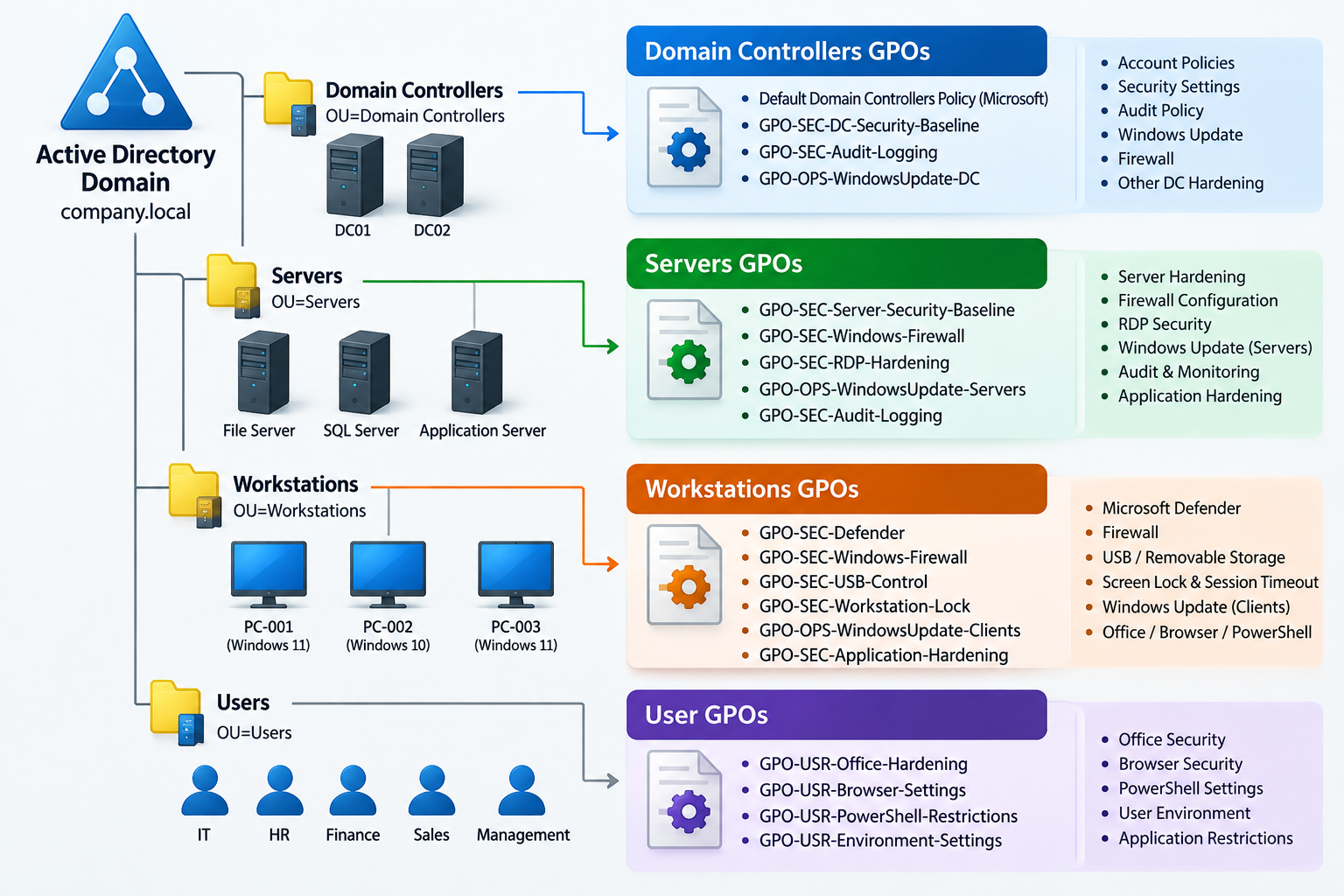
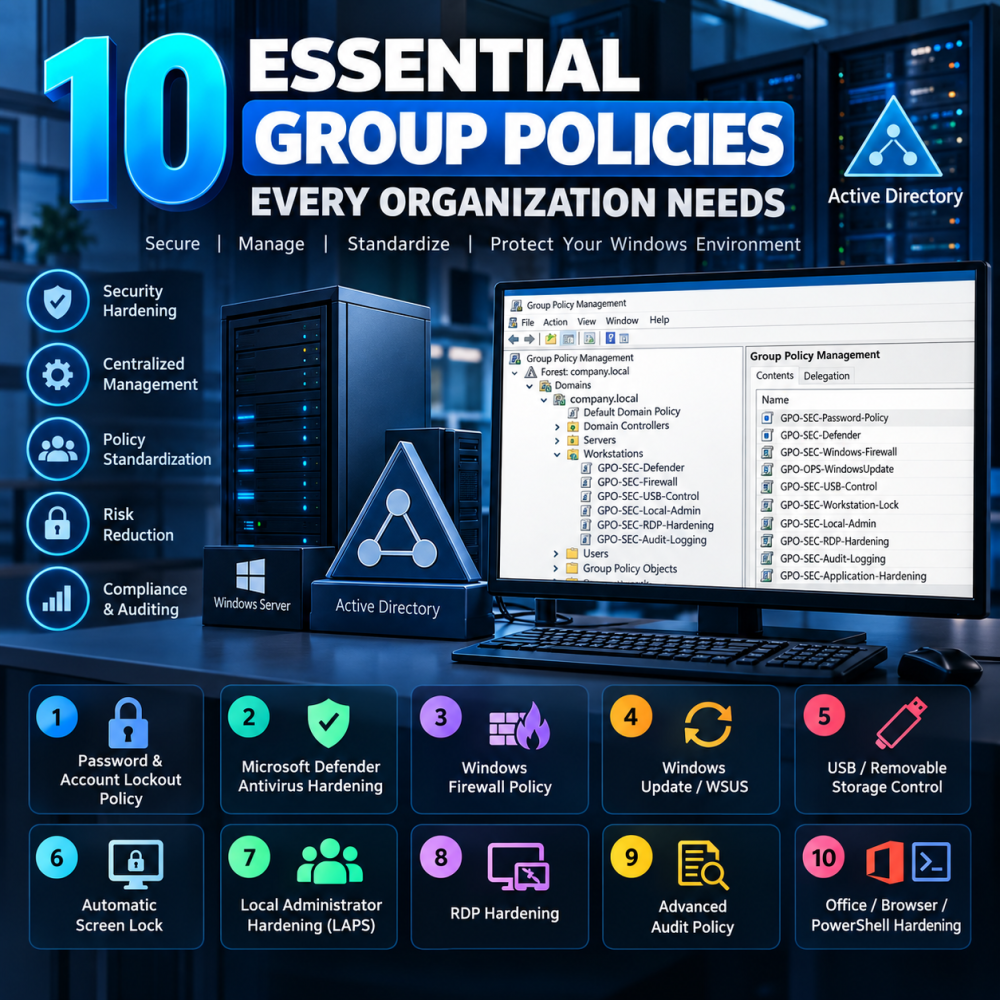
Separate workstations, member servers, DCs and users. A large monolithic GPO couples unrelated changes and makes rollout and rollback harder. Define one authoritative owner per setting; do not repeatedly configure the same value in competing baselines.
GPO-SEC-Password-Policy
GPO-SEC-Defender
GPO-SEC-Windows-Firewall
GPO-OPS-WindowsUpdate-Clients
GPO-OPS-WindowsUpdate-Servers
GPO-SEC-USB-Control
GPO-SEC-Workstation-Lock
GPO-SEC-Local-Admin
GPO-SEC-RDP-Hardening
GPO-SEC-Audit-Logging
GPO-SEC-Application-Hardening

Domain
│   └── Domain Password / Account Policy
├── Domain Controllers
│   └── DC Security GPO
├── Servers
│   ├── Server Security Baseline
│   ├── Server Update Policy
│   └── RDP Hardening
├── Workstations
│   ├── Workstation Security Baseline
│   ├── Defender
│   ├── Firewall
│   ├── USB Control
│   ├── Workstation Lock
│   └── Windows Update
└── Users
    ├── Office Hardening
    └── User Screen Saver Policy
Split GPO-SEC-Application-Hardening into user/computer or product policies if ownership differs. Add Clients, Servers or DC suffixes when values differ. A member-server local-group policy must not inherit blindly onto DCs.
Safe deployment: Test OU to Production
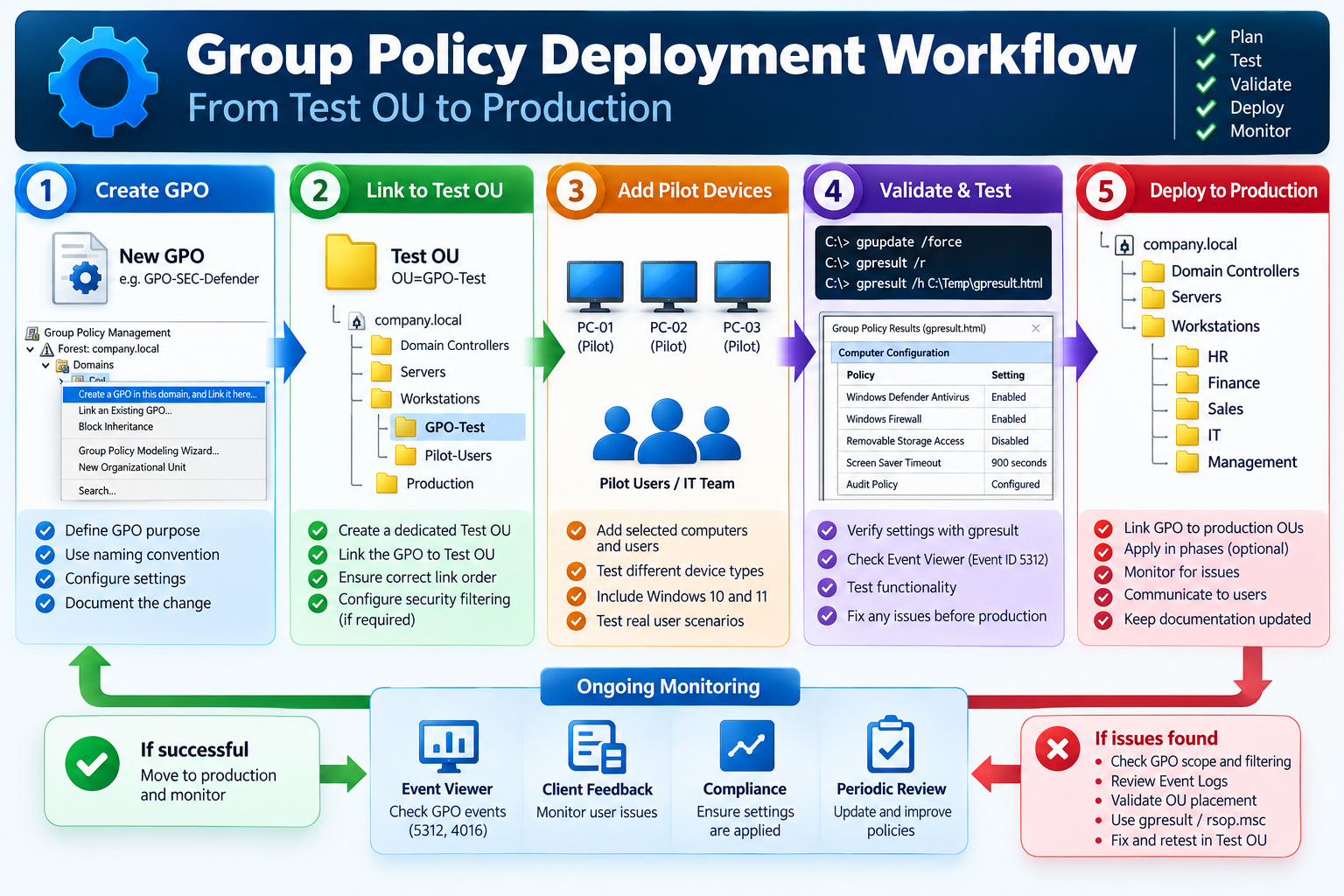
Create GPO → Link to Test OU → Add Pilot Computers → gpupdate → Validation → Production RolloutRecord existing effective policy and application health; create and document the GPO, link it to a pilot scope representing builds and workloads, apply the update and any required restart/logoff, validate effective state and functional behavior, then expand in waves with a stop criterion.
Never deploy an untested security GPO across the whole domain. Domain-account password policy needs a test domain or a user-targeted FGPP pilot; a workstation Test OU does not reproduce that scope.
Moving an object to a Test OU also changes inherited policies. Prefer a pilot child OU with preserved baseline or carefully scoped filtering. Prepare an explicit reverse change: unlinking alone does not restore GPP membership changes or every persistent setting.
Troubleshooting and resultant-policy validation

gpupdate /force
gpresult /r
gpresult /r /scope computer
gpresult /r /scope user
rsop.msc
gpupdate /force reprocesses policy, but cannot fix DNS or replication and may require logoff/reboot. gpresult /r lists applied policies and scopes; elevate for computer results. Run user results in the intended user context, not an unrelated administrator account. rsop.msc is useful but may omit newer settings or preferences.
New-Item -Path 'C:\Temp' -ItemType Directory -Force
gpresult /h C:\Temp\gpresult.html /f

Import-Module GroupPolicy
Get-GPResultantSetOfPolicy `
    -Computer 'PC-PILOT-01' `
    -User 'CORP\pilot.user' `
    -ReportType Html `
    -Path 'C:\Temp\PC-PILOT-01-RSoP.html'
The HTML report identifies winning settings, applied/denied GPOs and filtering. Get-GPResultantSetOfPolicy requires the GroupPolicy RSAT module, report type/path and suitable remote connectivity/permissions. Reported configuration must still be compared with live control behavior.
| Issue | Investigation |
|---|---|
| GPO Not Applied | Check enabled link, correct scope and enabled user/computer half. |
| Security Filtering | Target needs Read and Apply Group Policy; inspect Deny permissions. |
| WMI Filtering | Test query, OS match, response time and errors on the target. |
| Block Inheritance | Inspect the target OU and Group Policy Inheritance tab. |
| Enforced GPO | An enforced parent link can override lower-level settings. |
| OU Placement | Locate actual user/computer objects; Computers container is not an OU. |
| Computer vs User Configuration | Check object scope and deliberate loopback Merge/Replace design. |
| Replication Delay | Identify the selected DC and compare GPO versions across DCs. |
| SYSVOL Replication | Check DFSR health, AD-side and SYSVOL-side versions separately. |
| DNS Problems | Use internal resolvers able to resolve AD SRV records. |
| New group membership | Refresh user/computer security tokens; logon or restart may be required. |
For narrowly filtered user GPOs, retain computer read access, typically via Domain Computers or the scoped computer group. Removing Authenticated Users from Apply filtering does not remove the computer-read requirement. Read is distinct from applying user settings to a computer.
nltest /dsgetdc:corp.example
repadmin /replsummary
dcdiag /test:DNS

Resolve-DnsName -Type SRV '_ldap._tcp.dc._msdcs.corp.example'
Test-Path '\\corp.example\SYSVOL\corp.example\Policies'
Test-ComputerSecureChannel -Verbose

Get-WinEvent -LogName 'Microsoft-Windows-GroupPolicy/Operational' -MaxEvents 50
Run replication/DC diagnostics on an authorized host with the required tools. Test-ComputerSecureChannel is for member computers, not DC validation. SYSVOL accessibility does not prove all DC replicas are healthy. Check Microsoft-Windows-GroupPolicy/Operational on endpoints and DFS Replication on DCs; identify the failing DC/extension before repair.
Enterprise GPO best practices
- ☐ Keep Default Domain Policy mainly for domain password/account policies, not all security settings.
- ☐ If a separate root password GPO is used, document precedence and avoid conflicting account settings.
- ☐ Avoid extensive unexplained changes to Default Domain Controllers Policy; use separate DC hardening GPOs.
- ☐ Use modular GPOs, standard names, owners and documented settings.
- ☐ Use change management, representative pilot OUs and tested rollback.
- ☐ Delegate edit, link and LAPS recovery rights using least privilege.
- ☐ Review Microsoft security baselines for the exact OS version; document deviations instead of blindly importing them.
- ☐ Back up GPOs and separately document links, filters and external dependencies.
- ☐ Disable unused user/computer halves; use Enforced and expensive WMI filters only for a justified requirement.
| Naming convention | Purpose |
|---|---|
| GPO-SEC-xxxxx | Security controls |
| GPO-OPS-xxxxx | Operations and maintenance |
| GPO-USR-xxxxx | User configuration |
| GPO-SRV-xxxxx | Server role configuration |
Import-Module GroupPolicy
New-Item -Path 'D:\GPO-Backup' -ItemType Directory -Force
Backup-GPO -All -Path 'D:\GPO-Backup' -Comment 'Before security policy rollout'
GPO backup is not a complete AD backup and does not substitute for capturing OU links, filtering, delegation and recovery dependencies. Retain a change record with before/after values and verification evidence.
Enterprise Deployment Checklist
Before deployment
- ☐ Inventory OS edition/build, lifecycle and update support.
- ☐ Version and validate Windows, Edge, Office and LAPS templates.
- ☐ Approve values through security policy and change management.
- ☐ Separate DC, server, workstation and user scope.
- ☐ Identify management ownership and GPO/MDM/MDE conflicts.
- ☐ Back up GPOs and record links, filtering and permissions.
- ☐ Check DNS, AD replication and SYSVOL/DFSR health.
- ☐ Select representative pilot devices/users and a rollout stop criterion.
- ☐ Prepare firewall management rules and console/OOB access.
- ☐ Record local administrators and confirm LAPS schema, ACLs and decryption.
- ☐ Plan maintenance, restart, log capacity, retention and SIEM ingestion.
- ☐ Test the explicit rollback and recovery procedure.
After deployment
- ☐ Run gpupdate and any required restart/logoff.
- ☐ Review gpresult winning settings and effective endpoint state.
- ☐ Test both allowed and denied RDP/firewall scenarios.
- ☐ Confirm legitimate administration and recovery still work.
- ☐ Verify LAPS retrieval and post-use password rotation.
- ☐ Test USB read/write/execute and workstation lock timing.
- ☐ Verify patch compliance and post-restart application health.
- ☐ Confirm audit/PowerShell events and alerts reach the central platform.
- ☐ Validate Office macro, ActiveX and Edge policy on actual builds.
- ☐ Record incidents, exceptions and baseline deviations.
- ☐ Expand scope only after pilot approval and assign periodic review ownership.
Introduction
Summary: purpose, target and priority
| GPO | Purpose | Target | Recommended Setting | Risk if Disabled | Priority |
|---|---|---|---|---|---|
| Password & Lockout | Credential protection | Domain accounts | History 24; length ≥14; lockout 10/15/15 | Guessing and credential abuse | Critical |
| Defender | Malware protection | Clients / supported servers | Real-time, behavior, cloud, PUA enabled | Reduced detection and prevention | Critical |
| Firewall | Host network boundary | All hosts; role-specific rules | On; Inbound Block; Outbound Allow | Lateral movement and service exposure | Critical |
| Windows Update | Patch compliance | Clients / servers separately | WSUS/source, rings, coordinated restart | Unpatched vulnerabilities | Critical |
| USB Control | Removable-media control | Workstations | Read Only / Block | Exfiltration and removable-media malware | High |
| Screen Lock | Session protection | Workstations + users | 900 seconds; reauthentication | Abandoned session misuse | Medium |
| Local Admin & LAPS | Privilege and password control | Workstations / member servers | Narrow membership; unique rotating password | Shared-credential lateral compromise | Critical |
| RDP Hardening | Remote access protection | RDP-enabled hosts | NLA; TLS; scoped users/firewall | Unauthorized remote access | Critical |
| Audit Logging | Detection and evidence | DCs / servers / clients | Advanced Audit; 4688; central collection | Missing evidence and late detection | High |
| Application Hardening | Reduce malicious execution | Users / relevant endpoints | Macro block; ActiveX control; SmartScreen; PS logs | Malicious content and reduced visibility | High |
Priority expresses importance, not rollout order. Sequence changes by service dependency, lockout risk and recovery readiness. This runbook is a tested-deployment design, not an assurance that the commands were executed against an organization’s domain.
Frequently Asked Questions
Where should the domain password policy be linked?
Link the authoritative domain account policy at the domain root. A password GPO linked only to a Users OU does not establish a separate password policy for those domain users. Use FGPP for selected users or global security groups.
Does Windows LAPS remove local administrator membership?
No. Windows LAPS rotates and backs up a managed local account password. Control administrator membership separately through a reviewed Restricted Groups or Local Users and Groups policy.
Can GPO manage Defender Tamper Protection?
GPO cannot enable or disable Tamper Protection. Protected settings may reject GPO changes even when processing succeeds; verify the effective Defender state and use supported central management.
Does blocking removable disks disable every USB device?
No. Removable Storage Access controls storage classes. Keyboard, mouse and other USB devices are separate; broad Device Installation Restrictions need an explicit compatibility pilot.
Do Active Hours create a server maintenance window?
No. Active Hours affects restart behavior. Cluster drain, failover, installation sequencing and health checks require an orchestrator or an approved operational runbook.
Is a successful gpupdate sufficient verification?
No. Inspect gpresult and the winning settings, then check effective endpoint state and test allowed and denied behavior. Replication, filtering, competing managers and tamper protection can change the outcome.
Should PowerShell be disabled across the organization?
Keep required administrative functionality and apply least privilege, logging, signed-script workflows and application control. Execution Policy alone is not a security boundary; validate Windows PowerShell and PowerShell 7 separately.
Does unlinking a GPO restore the previous configuration?
Not reliably for every setting. Preferences, group membership and persistent changes can remain. Record the previous state and test an explicit rollback before production rollout.
Official Microsoft References
Consult the documentation that matches the deployed OS, product build and administrative templates before changing production policy.
- Windows 10 lifecycle
- Maximum password age
- Account lockout threshold
- Fine-grained password policies
- Scheduled scans
- Cloud protection and sample submission
- Defender Group Policy and tamper limitations
- Firewall rules with Group Policy
- WSUS automatic updates
- Update policy behavior
- Removable storage policies
- Machine inactivity limit
- Windows LAPS policy settings
- Deploy Windows LAPS with AD
- Restricted group membership semantics
- Remote Desktop policy reference
- Advanced Audit Policy
- Command-line process auditing
- Office Internet macro blocking
- Microsoft Edge policy reference
- PowerShell Group Policy
- PowerShell logging on Windows
- Microsoft Security Compliance Toolkit