
What bootable media provides
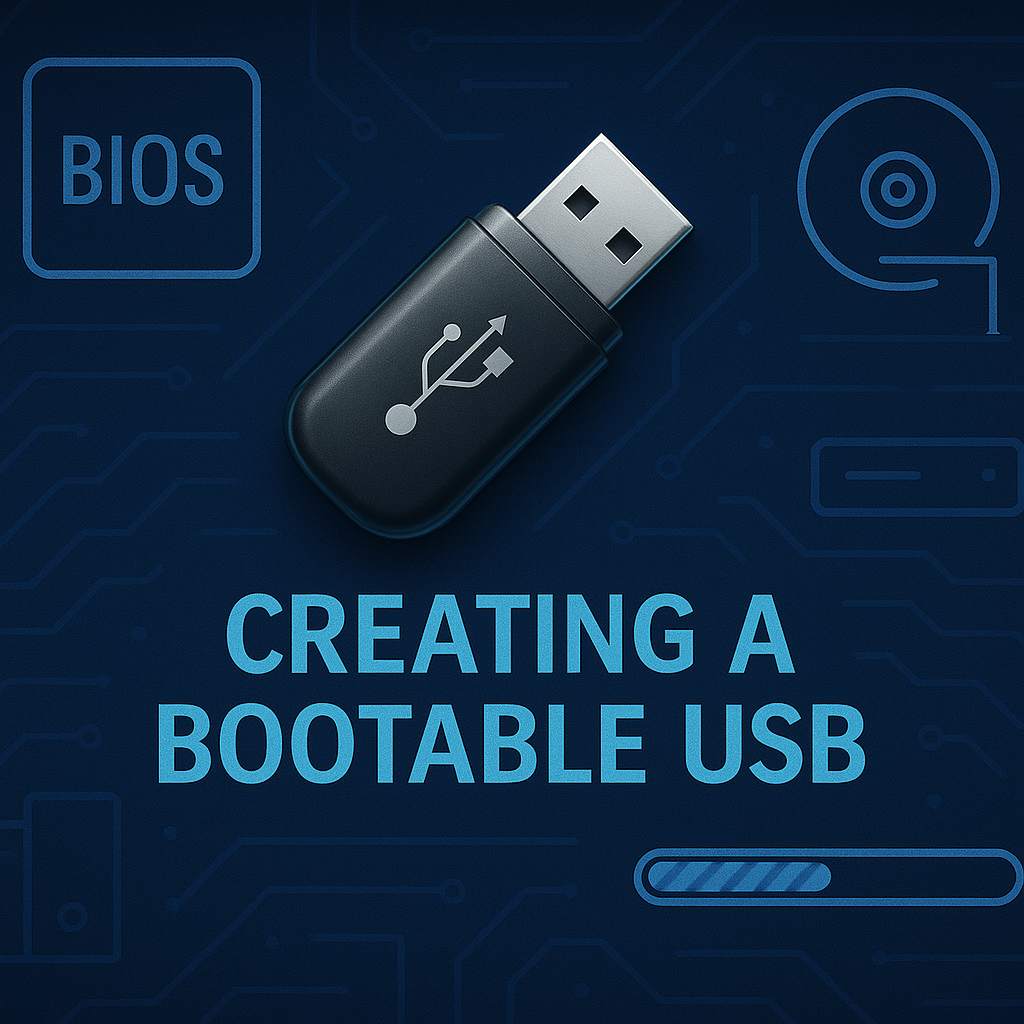
A server powers on but its operating system will not start. Installation or recovery needs media that can boot independently. A bootable USB provides that environment; copying an ISO file onto an ordinary USB does not. This tutorial checks a trusted ISO, writes it with Rufus, and tests boot and hardware detection before the media is needed.
Before writing the USB
Download the ISO from Ubuntu or Microsoft. This example covers Ubuntu 24.04 LTS and Windows Server 2022/2025. The desktop Windows Media Creation Tool is not a Server ISO download tool.
Choose capacity for the image and writing method. A 16 GiB USB suits many images, but check the actual size. Confirm operating-system support for the target storage controller and NIC.
Run an official Rufus build on Windows. Preserve any USB data elsewhere, then check the target disk number, size and serial. Writing the image erases the selected USB.
Legacy BIOS compatibility
For a Legacy BIOS machine, select its compatible layout. Do not choose GPT or MBR solely from the operating-system name. Target firmware and the image’s writing instructions determine the choice.
ISO, UEFI and media layout
The process starts with the ISO: compare the download with the publisher's checksum, then let the writer create a layout that UEFI or BIOS can load. The media supplies an installation or recovery environment. Application files, encryption keys and backups must remain available separately.
Example: prepare recovery media
Prepare media before a replacement server is needed. Label it with the operating system, ISO version and last boot-test date. Keep the image hash with the download record so the media is reproducible.
Image trust and credential protection
Obtain the ISO and writer from official sources. Keep unattended-installation passwords off shared media. Leave Secure Boot enabled for compatible images and investigate signature failures through image and trust-chain checks.
Verify the ISO and write it with Rufus
On the Windows computer holding the ISO, first read its hash and the USB disk details. Replace the sample IsoPath with the actual path. These commands do not write to a disk; they identify the image and target before Rufus makes changes.
$IsoPath = 'C:\InstallMedia\ubuntu-24.04-live-server-amd64.iso'
Get-Item -LiteralPath $IsoPath -ErrorAction Stop | Select-Object Name,Length
Get-FileHash -LiteralPath $IsoPath -Algorithm SHA256
Get-Disk | Select-Object Number,FriendlyName,SerialNumber,BusType,Size
The SHA256 must match the publisher exactly. A hash you generate yourself detects later changes but does not authenticate the download.
Identify the USB by size/serial in Rufus and select the ISO. Check target firmware and distribution guidance. GPT generally suits UEFI, while ISO/DD mode follows the image’s instructions.
Recheck the target before Start because its data is erased. After writing/ejecting, select the USB from the test machine’s temporary boot menu.
Keep Secure Boot enabled for compatible images. Check storage/NIC detection in the installer and recovery access to a test backup. Do not install onto production disks.
Boot-test the target hardware
Use the temporary boot menu on test hardware matching the target server. Reaching the installer is only the first check: storage and NICs must be detected, and the recovery environment must reach a test backup. Record the date and result so the media's tested hardware is clear.
Common media-test mistakes
A successful laptop boot does not establish server-storage compatibility. Test equivalent hardware and stop before installing onto a data-bearing disk.
When the USB does not boot
Let the symptom guide the investigation. If the USB is missing from the boot menu, check the USB port and whether Rufus matches UEFI or BIOS mode. If the installer starts but cannot see storage, inspect the controller mode and driver; formatting is not a detection fix. For Secure Boot errors, check the image signature and compatibility. FAT32 cannot hold a single file larger than 4 GiB; use a compatible writer method or Microsoft's documented method for a Windows image containing larger files.
Rebuild media and prepare restore
Media that boots today should also be reproducible later. Keep the ISO, publisher checksum, writer version and settings. Rehearse access to backups, encryption keys and required drivers from the recovery environment; the USB alone does not complete the server recovery path.
Best Practices
- Version-control configuration and review changes.
- Use least privilege and explicit allow-lists.
- Automate repeatable checks and monitor the expected state.
- Test upgrades and restores before production rollout.
Conclusion
A reliable implementation of Create a Bootable USB for Ubuntu or Windows Server is more than a successful first run. Keep the configuration documented, observable, recoverable, and aligned with the team's change-management process.
Frequently Asked Questions
Is installation USB a server backup?
No. It supplies installation/recovery tools. Application data needs separate backup.
Must Secure Boot be disabled?
Only for a documented incompatibility and an approved decision. Keep it enabled when compatible.