
When a downgrade is warranted
A branch tunnel stops working immediately after a RouterOS upgrade. Before downgrading, use logs and a repeatable service test to establish whether this is a regression caused by the release change. This guide follows preparation, downgrade and service checks, because a rollback can also introduce configuration incompatibilities or restore an old vulnerability.
Record versions and arrange local access
This procedure targets RouterOS v7. Record the exact release, architecture and factory-software, then review the target release notes. Device factory-version limits constrain the downgrade.
Check free space for required packages and backup files. For CHR, record licensing and image version. RouterBOARD commands do not apply to CHR.
Connect through management and copy exports/backups off the router first. Safe Mode helps with live configuration changes but does not automatically undo a downgrade or reboot. Keep independent console access and a recovery plan.
Moving from v7 to v6
Check v7-to-v6 eligibility against the model and factory release. Routing and package changes risk configuration loss. An export alone does not preserve certificates, private keys and every device state.
RouterOS and RouterBOOT are separate
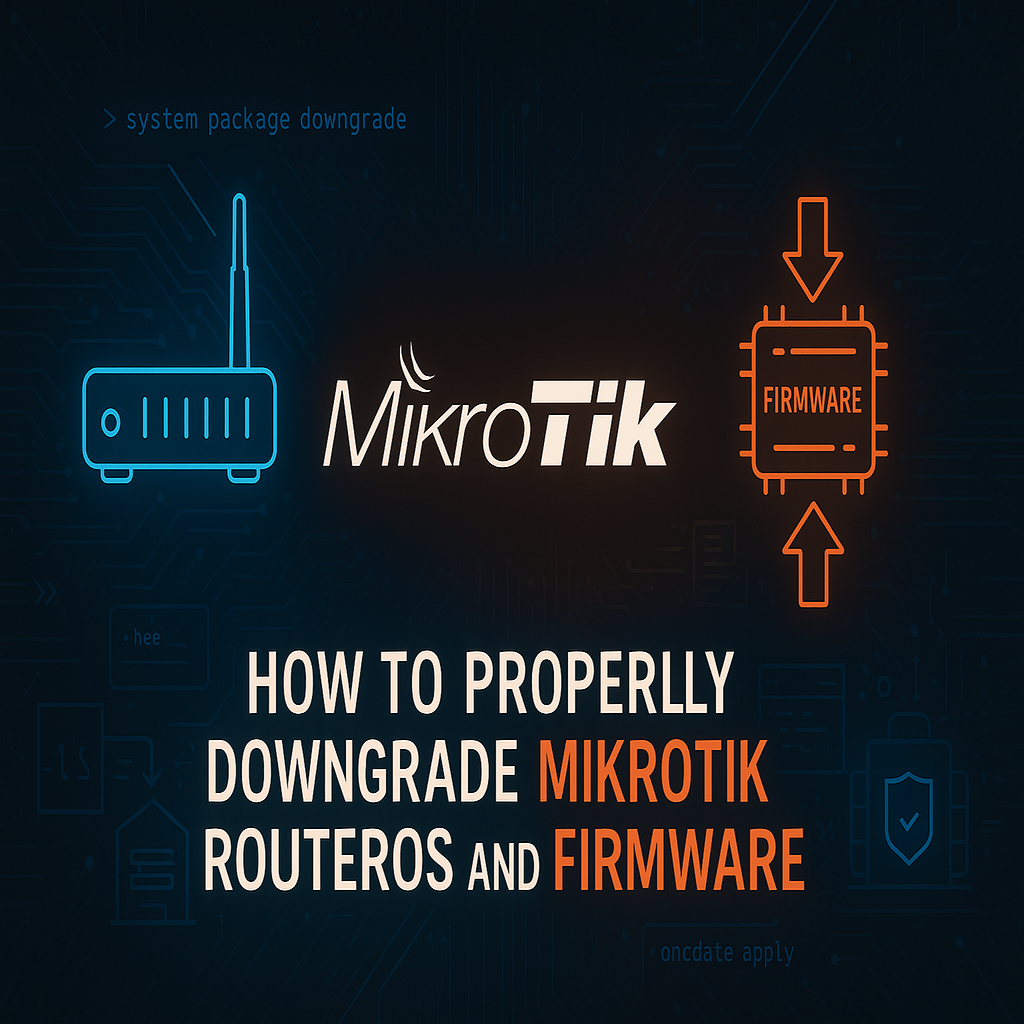
Keep the two versions separate. RouterOS is the operating system; RouterBOOT is the bootloader on RouterBOARD hardware. An operating-system downgrade installs compatible packages. Changing the bootloader is a separate decision that needs a specific reason and instructions for the device model.
Example: a branch tunnel fails after an upgrade
For the branch-tunnel example, rehearse the same configuration and version transition on CHR first. That checks software behavior without reproducing every RouterBOARD hardware constraint. The branch router still needs a maintenance window and local console access.
Target-version and backup security
Choose a target that avoids the regression and known relevant vulnerabilities. Obtain packages from MikroTik. Restrict access to encrypted off-router backups because they contain authentication material.
Return to a working release or use Netinstall
Keep known-good packages, backups and exports on another machine. Restore a binary backup to the same router, preferably using its original software version. For boot failure, follow the model’s local Netinstall procedure, then test routing, VPNs and management independently.
Accept or reject the rollback
Define the required tunnel, route and application tests before the change. Failed service tests prevent acceptance even when management is reachable.
Back up, upload packages and downgrade
The following commands record the pre-change state. Note the RouterOS release, architecture and factory version limit before selecting packages. The routerboard print command applies to RouterBOARD hardware; omit it on CHR.
/system resource print
/system package print
/system routerboard print
/export file=before-downgrade
/system backup save name=before-downgrade password="REPLACE_WITH_UNIQUE_BACKUP_SECRET" encryption=aes-sha256
Replace the sample backup password with a unique secret. Download .backup/.rsc off the router. Upload required same-version packages for the correct architecture from MikroTik to the Files root, removing unrelated older packages.
/file print detail
/system package downgrade
The package downgrade command reboots the router, so plan for a loss of network access at this step. After startup, compare every installed package with the target release. A working WinBox session establishes management access, not the health of the branch service.
/system resource print
/system package print
/ip route print detail
/interface print stats
/log print
From LAN, test DNS, VPN and the branch application. If management does not return in the expected boot period, use console recovery. Avoid repeated reboots without investigating logs.
Service checks after reboot
Compare package versions, uptime, interfaces and tunnels with the pre-change state. Test DNS and the actual application from the branch and headquarters. WinBox connectivity establishes only management access.
Rejected packages or missing services
If a package is rejected, check architecture, factory version limit, free Files space and matching package versions. For a missing feature, check its package and the target release syntax; do not import a new-release export wholesale into an older release. If management does not return after the usual boot time, investigate through the console and logs instead of repeatedly rebooting.
Best Practices
- Version-control configuration and review changes.
- Use least privilege and explicit allow-lists.
- Automate repeatable checks and monitor the expected state.
- Test upgrades and restores before production rollout.
Conclusion
A reliable implementation of Downgrade RouterOS Safely and Check RouterBOOT is more than a successful first run. Keep the configuration documented, observable, recoverable, and aligned with the team's change-management process.
Frequently Asked Questions
Must RouterBOOT be downgraded too?
No. A bootloader change needs its own documented justification.
Does an export recover every secret?
No. Certificates, private keys and other state need separate protection.