
A firewall is only part of the picture
You set up SSH keys, enable the firewall and bring a server online. That is a good start. A few months later, though, an old account may still have access, updates may be waiting, or a scheduled job may run a script that anyone can edit. These are easy things to miss when you are busy keeping services running.
Linux Security Auditor puts these checks in one Bash script. It looks at users, passwords, SSH, updates, network ports, file permissions, scheduled jobs, kernel settings, logs and containers. Here is how to run it and, more importantly, how to read what it finds.
What does Linux Security Auditor do?
Version 2.0.0 is a single script that runs on GNU/Linux with Bash 4.4 or newer. It reads the settings and information available on the server, then prints a report. Each finding has a name, a risk level, an explanation and a suggested next step.
The script is split into groups of checks. One group reviews accounts, another SSH, another updates, and so on. Commands and file searches have time limits. If a command is missing or a check cannot finish, the report says UNKNOWN. It does not quietly count that check as passed.
The default run balances detail and scan time. Quick skips some heavier work. Deep searches a wider local scope, but still has limits. --full only makes the terminal report more detailed; it is different from --profile full, which includes more policy checks.
Which Linux distributions can it check?
The script reads /etc/os-release to choose the right family of commands. It has paths for APT on Ubuntu and Debian, DNF/YUM on the RHEL family, and Zypper on SUSE. Recognizing a distribution does not mean every check has been tested on it.
VALIDATION.md lists partial support for Ubuntu 20.04, 22.04, 24.04 and 26.04; Debian 11, 12 and 13; RHEL, Rocky, AlmaLinux and Oracle Linux 8, 9 and 10; CentOS Stream 9 and 10; and openSUSE Leap/SLES 15 and 16 families. No distribution is marked fully supported. The recorded live run was in an Ubuntu 24.04 container, where several host features were unavailable.
For another release, treat the output as a starting point and check the distribution-specific results yourself. Try the script on a test server before using it across a fleet.
What does the security score mean?
The score summarizes the checks that could be assessed. More serious issues carry more weight: CRITICAL has weight 10, HIGH 6, MEDIUM 3 and LOW 1. A pass gets full points, a warning gets half, and a failed check gets none. Informational and not-applicable records do not add points.
UNKNOWN checks are left out of the score, but they reduce evidence coverage. Coverage tells you how much of the applicable weighted checks had a usable result. Always read the two numbers together. A score of 95 with little coverage says less than the headline number suggests.
raw_score = floor(100 * (PASS_weight + 0.5 * WARN_weight) / known_weight)
coverage  = floor(100 * known_weight / applicable_weight)
score     = min(raw_score, critical_cap)
For example, a HIGH pass, a MEDIUM warning, a LOW failure and a HIGH unknown give 75 raw points and 62% coverage. The overall score uses control weights, not an average of category scores. By default, one critical finding caps the score at 85; two cap it at 75; three or more cap it at 65.
A score of 100 does not mean the server cannot be hacked. It means the assessed checks met their expectations. The dashboard also shows CIS-aligned, attack-surface and threat figures. These cover selected checks only; they are not a CIS certificate or proof that no malware is present.
Pass, warning and unknown
PASS means the observed setting met the check. INFO is background information. WARNING needs review. HIGH and CRITICAL flag failed checks with higher risk. UNKNOWN means there was not enough information. NOT_APPLICABLE means the check does not apply or was left out by the selected profile.
Risk level is a separate field: LOW, MEDIUM, HIGH, CRITICAL or INFO. A WARNING can still have HIGH risk, so read the explanation too. JSON keeps internal state names such as WARN, FAIL and NA alongside the public labels.
Download and run the script
Download the file, review it and copy it to your Linux server. It needs Bash 4.4+ and common command-line tools, including awk, grep, find, stat, df and timeout. It does not install missing tools for you.
Download security-audit.sh (v2.0.0)
chmod +x security-audit.sh
./security-audit.sh --version
./security-audit.sh --help
sudo ./security-audit.sh --quick --summary
sudo ./security-audit.sh
Start with --quick to see what the tool can read. Then run the default standard scan for more detail. You can run without sudo, but protected files and some firewall or audit information may be unreadable. Running as root inside a container does not give the same view as running on the actual host.
Useful commands and all available options
For everyday use, the commands below are enough to get started. The table lists every available option when you need to change the scan or report.
sudo ./security-audit.sh --standard --full --no-color
sudo ./security-audit.sh --deep --profile full --scan-seconds 60
sudo ./security-audit.sh --quick --export-json /root/audit-quick.json
sudo ./security-audit.sh --standard --export-html /root/audit-standard.html
sudo ./security-audit.sh --output-dir /root/audit-2026-10-05
sudo ./security-audit.sh --disk-thresholds 80,90,95 --critical-caps 85,75,65
./security-audit.sh --self-test
./security-audit.sh --demo --no-color| Option | Behavior |
|---|---|
--quick | --standard | --deep |
Cost profile; standard default. Deep is not unlimited. |
--full | --summary |
Terminal detail; summary default. |
--profile cis-l1|cis-l2|enterprise|full |
Policy selection; enterprise default excludes Level 2 controls. cis-l2 selects Level 1 and Level 2. |
--no-color | --color auto|always|never |
Color policy; auto default. |
--export-json FILE |
Create a new JSON report; existing targets are refused. |
--export-html [FILE] |
Create standalone HTML; omitting FILE selects a new report directory if none was specified. |
--output-dir ABSOLUTE_PATH |
Create a new private directory with report.json, report.html and detailed report.txt. |
--scan-seconds N |
Per file scan timeout: 5..300; default 30. |
--disk-thresholds WARN,HIGH,CRIT |
Increasing values 0..100, default 80,90,95; strictly greater comparisons. |
--critical-caps ONE,TWO,THREE |
Nonincreasing values 0..100; default 85,75,65 for 1/2/3+ critical findings. |
--ssh-context SPEC |
Supply sshd -T -C context. |
--sshd-config ABSOLUTE_PATH |
Select an existing daemon configuration file. |
--self-test |
Run isolated local fixtures. |
--demo |
Generate explicitly labeled synthetic findings. |
--version |
Print version and exit. |
--help | -h |
Print help and exit. |
Use a new name for each report. The tool refuses to overwrite an existing file or directory. Parent directories must already exist. For sudo runs, a fresh path under /root is a straightforward choice because report parents must be trusted, root-owned and free of symlinks. --export-html without a filename creates a report directory under the current working directory if no output directory was supplied.
If you automate the run, read the exit code: 0 means no HIGH/CRITICAL findings with at least 80% coverage; 1 means high or critical findings; 2 means incomplete coverage; 3 means a usage or runtime error. Codes 130 and 143 mean interruption. Code 1 is a reported risk, not a script crash.
Reading the dashboard
The first part identifies the machine: hostname, distribution, kernel, IP, uptime and whether the run has root access. Below it are the score, coverage and risk counts. Each category has its own score and coverage, so you can see where the gaps are.
Start with the priority findings. Summary mode shows up to eight, ordered from critical down to low, plus up to five unknown checks. Read the evidence and suggested action before making a change. Disk, inode and memory figures help spot capacity problems. --full shows all findings.
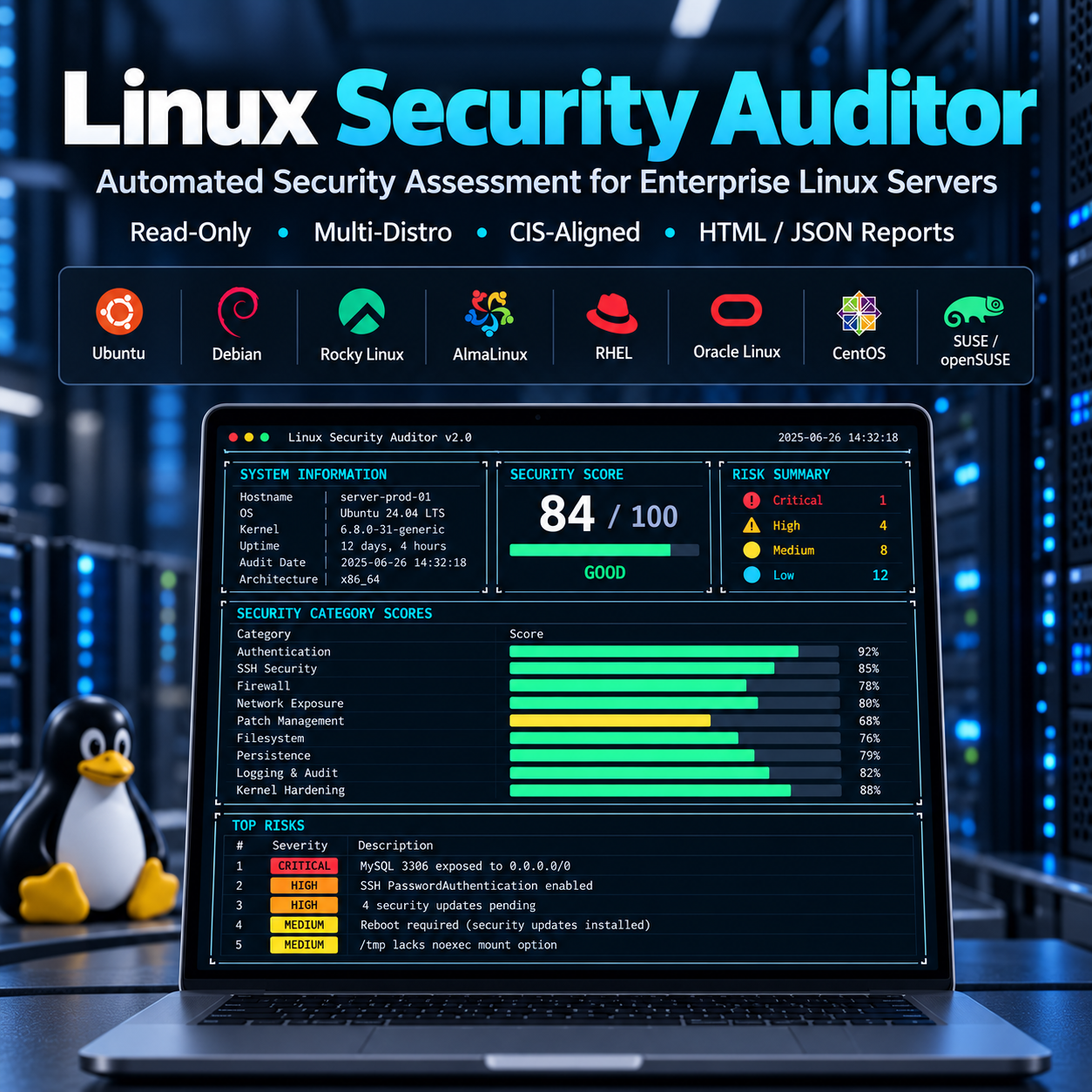
An illustration of the dashboard. Your server findings come from your own run; --demo uses sample data.
JSON is useful for processing findings in other tools. HTML is a standalone report you can open in a browser, with no external assets. --output-dir saves JSON, HTML and a full text report together. Reports contain server information, so keep them private.
Are updates waiting?
On Ubuntu and Debian, the script simulates an APT upgrade using the package information already on disk. It counts pending updates, looks for security-update candidates, checks package holds and incomplete package operations, and reviews some automatic-update settings. It also looks for repository trust bypasses and update-log errors.
The important limit is freshness. The auditor does not refresh repository data. An old or incomplete cache can hide available updates. Even a recent APT index does not prove every security repository is up to date. An empty security-update result is not a clean bill of health.
The RHEL path uses cached DNF/YUM queries. SUSE queries run only when a read-only bwrap environment is available; otherwise they remain unknown. Reboot hints are handled differently by distribution. The script records the running kernel, and on Debian can compare it with installed packages of the same kernel flavor. It does not guess across different kernel families or claim a complete CVE scan.
Old accounts and password settings
The account checks look for extra UID 0 users, duplicate IDs, service accounts with interactive shells and empty password fields. They also review password aging and identify older or unrecognized password-hash formats. Hash values are not printed or cracked.
Home and .ssh permissions, readable shell history and files such as .netrc or .rhosts can point to access that needs a closer look. Locking a password does not revoke an SSH key. If someone leaves the team, review every way they can log in.
PAM and sudo checks look at password-quality and lockout settings, sudoers syntax, passwordless rules and broad command permissions. Some results are only clues because includes and defaults can change the effective policy. Confirm what each administrative account can actually do before editing its permissions.
What SSH actually allows
Reading one sshd_config file is not always enough. Other files, defaults and Match rules may change the result. The auditor uses sshd -T to ask the daemon for its effective configuration. It checks root login, passwords, empty passwords, public keys, forwarding, authentication attempts and selected cryptographic settings.
If you use Match rules, supply the real user and connection context. Without it, the tool reports a gap in SSH coverage. The addresses below are examples; replace them with your own.
sudo ./security-audit.sh --ssh-context 'user=admin,host=admin.example,addr=192.0.2.10' \
  --sshd-config /etc/ssh/sshd_config --full
Check more than one context when different users have different rules. A warning is a reason to review the policy, not to disable settings blindly. Keyboard-interactive, for example, may be part of MFA. Test a second administrative connection before applying any SSH changes yourself.
Open ports and firewall rules
The script reads local UFW, nftables and iptables information when it can. It also lists listening TCP/UDP ports, connections, interfaces and routes. It highlights selected legacy-service and database ports for review. Port numbers are clues, though; a service may use a custom port.
A listener on 0.0.0.0 or :: is not automatically reachable from the internet. NAT, cloud firewalls, upstream firewalls and routing all affect reachability. The auditor does not probe from outside the server, and it cannot prove that IPv4 and IPv6 have equivalent protection. Check the real access path separately.
Likewise, having firewall rules does not prove they block the intended traffic. Rule order, jumps and container networking matter. Use the report to find what needs review, then verify the complete policy.
Scheduled jobs and startup commands
Cron jobs, systemd timers and startup files are useful, but they can also keep an unwanted command running after a reboot. The auditor checks permissions on these paths and looks for patterns such as downloading a script and piping it into a shell, running from /tmp, or unusual startup commands.
It records running services, timers and failed units, and samples up to 30 services for their user and unit-file permissions. It does not run any discovered job or print cron command bodies. A recent file change or a strange-looking job is not proof of an attack. Compare it with deployments and approved changes.
File access and disk space
Some files should only be changed by trusted administrators. The script reviews account files, sudo and SSH settings, cron paths and other sensitive configuration. It also searches a bounded local scope for world-writable files, unknown owners, SUID/SGID files and sensitive filenames with broad permissions.
A SUID file is not automatically a vulnerability, and a file named secrets may not contain a secret. Review the owner, package and purpose before changing permissions. The tool also checks mount options such as nodev, nosuid and noexec. These need to fit the workload; applying them without testing can break a service.
Disk and inode use are checked separately. A disk can have free space but run out of inodes when it holds too many small files. Default warning/high/critical thresholds are strictly above 80/90/95 percent. An incomplete search stays inconclusive, and network filesystems are excluded from file scans.
A few checks on the Linux kernel
Kernel checks read sysctl values for memory randomization, access to kernel addresses and logs, process tracing, protected links, SYN cookies and network redirects. They also review selected BPF, performance-monitoring and namespace settings, along with boot and module indicators.
Examples of its baseline are kernel.randomize_va_space=2, kernel.dmesg_restrict=1, net.ipv4.tcp_syncookies=1 and fs.suid_dumpable=0. More restrictive ptrace_scope values 2 and 3 are accepted too. These are observations, not settings the script applies.
A router, VPN server or container host may need forwarding or namespaces that a simpler server does not. Read a warning in that context. The auditor never changes sysctls or loads or unloads modules.
Will the logs help when something goes wrong?
The script reviews journald, rsyslog, log rotation and permissions on log paths. It looks at auditd and available audit rules, including signs of lost audit events. It also checks local time-synchronization information, since an incorrect clock makes events harder to line up.
An active logging service does not prove that logs are retained or reaching your monitoring system. An empty file may be normal after rotation. Check actual events in the central log system and verify how long they are kept. The auditor cannot confirm that delivery on its own.
AppArmor and SELinux
AppArmor and SELinux add restrictions beyond ordinary file permissions. The auditor expects SELinux on the RHEL family and generally AppArmor elsewhere, while also considering the MAC system it can actually observe. It reads enforcement state and available profile or policy information.
Missing inspection tools do not prove the protection is disabled. A profile in complain mode records activity without enforcing that profile’s restrictions. Check which services are actually covered, and review exceptions before enabling a stricter policy on production.
Docker and Podman checks
When an existing local Docker or Podman API is readable, the script samples up to 100 running containers. It checks privileged mode, root users, host networking and namespaces, risky capabilities, writable root filesystems and sensitive host mounts. It also reviews runtime socket permissions and some port and registry indicators.
It uses local Unix sockets, not a remote daemon, and does not start a missing Podman service. Missing access is reported rather than treated as a passed check. Container names, environment and command arguments are not collected. Image age is not a vulnerability result; use a separate image scanner for that.
Suspicious signs need a second look
The auditor looks for executables running from temporary paths, deleted-but-running files, shell processes under web-service users and selected mining-process names. These can be useful leads, but legitimate deployments and updates can produce some of the same signs. High CPU use alone is not evidence of a miner.
Standard mode checks selected core package files; deep mode checks a broader package scope. File differences need context, and a compromised host may falsify its own tools or package records. For an incident, bring in independent logs and trusted investigation tools.
Other checks flag selected weak TLS settings, expiry of public .crt files and broad permissions on credential-like filenames. A certificate in the trust store is not necessarily one served by your application. No live TLS test, full CVE scan or backup restore test is performed.
The script reports; you decide what to change
This is an audit script, so it leaves server settings alone. It does not upgrade packages, refresh repositories, change firewall rules or file permissions, restart services or write sysctls. The suggested actions in the report are for you to review and carry out separately.
It does create private temporary files and the reports you request. Temporary files are cleaned up on exit; exported reports remain. Read-only does not mean zero disk activity, and a deep scan can still put load on storage. Choose a quiet time for heavier runs.
Keep reports in private storage. They may contain account names, paths and network information even though password hashes and many command details are withheld.
What has been tested?
VALIDATION.md records a passing Bash syntax check and a self-test with 22 distribution-detection examples, scoring, status labels and report checks. You can run the two commands below yourself before the first audit.
bash -n security-audit.sh
./security-audit.sh --self-test
The document also describes an earlier Ubuntu 24.04 container run and a historical 67-test suite. The original reports and that suite are not in the supplied package. ShellCheck, native non-root Linux integration and full distribution testing have not all been verified. A self-test passing is useful, but it does not prove every host check will work on your server.
Using the report in daily operations
Start with a quick run on a test server. For the regular review, save a standard report and note the version, profile and access level. Follow up on high-risk findings first, then work through unknown results. Some need sudo, another inspection tool or information from outside the host.
After approved changes, rerun with the same settings and compare findings and coverage. Do not chase the score alone. This tool does not replace penetration testing, a current vulnerability scan, external access tests or a real backup restore. It gives you a repeatable local checklist to work from.
Common questions
Does the auditor change server configuration?
It creates private temporary files and requested reports. It does not upgrade packages, change firewall rules or permissions, restart services, or write sysctls.
Does a score of 100 mean the server cannot be compromised?
No. Points describe observed controls within the selected scope. Unknown evidence reduces coverage, and external exposure, CVEs and recovery need separate validation.
Is this a certified CIS Benchmark assessment?
No. The profiles select locally implemented CIS-aligned controls. Official benchmark section mappings and certification are not claimed.
A practical starting point
The value of this script is having the common checks in one place. Run it, read the findings and confirm what matters for your server. For administrators, DevOps and security teams, that makes a regular review easier to repeat and easier to discuss. The next step is the same as with any audit: turn the useful findings into work you can verify.