
From installation to host acceptance
Installing ESXi is only the start of running several VMs on a new server. ESXi allocates hardware resources to virtual machines, but service migration first needs CPU, NIC, storage and firmware compatibility with the target build, followed by management-network, DNS, NTP and datastore checks. This tutorial continues through a test VM and host acceptance.
Compatibility, image and installation disk
Select an approved ESXi 8 patch/OEM image and compatible vCenter. Match exact models, drivers and firmware to the Compatibility Guide.
Choose boot/datastore devices using build requirements. Detected NICs are not necessarily supported. Plan workload capacity separately from installation minimums.
Prepare console, credentials, license, DNS, NTP and VLANs. Installation overwrites the selected disk. Verify its serial before accepting the target.
Build and support conditions
This guide targets ESXi 8. Check lifecycle, entitlement and vCenter compatibility before deployment. Nested ESXi on Workstation does not validate physical hardware compatibility.
Boot, management and datastore paths
Document three distinct paths: the boot device holds ESXi, the management VMkernel reaches its VLAN through a virtual switch and vmnic, and the datastore holds VM data. Their failure and recovery paths differ, so record each path and its dependencies.
Example: add an empty host to a cluster
The new host has no workloads. Management uses VLAN 30, two uplinks and out-of-band console access. Run a canary VM before moving service VMs onto it.
Restricted management and temporary SSH
Restrict management networks and use named least-privilege vCenter identities. Close SSH/Shell after changes. Test exceptions and console recovery before Lockdown Mode. Establish trusted certificate and syslog paths.
Install the image and configure DCUI
Match CPU/NIC/controller and firmware to the target build/OEM image. Record the ISO hash and verify the boot device by its serial.
Install on the designated boot device after identifying existing datastores and data-bearing disks. Use DCUI for first boot.
In F2 → Configure Management Network, select management NICs, the switch-compatible VLAN ID, static IP and DNS. Test gateway/DNS. Sample IP is 10.20.30.11/24 with gateway 10.20.30.1.
4. Open the Host Client using the registered hostname and a trusted certificate. Enable SSH only for the necessary change window. Run the following read-only commands in the ESXi Shell to compare the installed version and network state with the plan.
vmware -v
esxcli system version get
esxcli network nic list
esxcli network ip interface ipv4 get
esxcli network ip route ipv4 list
esxcli system ntp get
Verify the target build, the correct management VMkernel address and both uplinks as designed. Check DNS, NTP and start policy in the Host Client. Then add the host to vCenter and create a test VM; its network, datastore and workload restart must pass before real services move onto the host.
Configure and verify ESXi 8 NTP explicitly
In Host Client, Manage → System → Time & date, edit NTP settings and approved servers/start policy. Alternatively use the following root ESXi Shell change during an approved window. Replace both documentation addresses with real reachable NTP servers. Review possible clock correction against running workloads first; do not run host configuration changes without console access.
esxcli system ntp get
esxcli system ntp set -s 192.0.2.53 -s 192.0.2.54 -e 1
esxcli system ntp get
Illustrative acceptance fields are Enabled: true and Time Synchronized: true; synchronization is not immediate. Enabled alone is insufficient. If unsynchronized, inspect source availability, UDP/123 path, server quality and VMkernel routing. ESXi 7.0 U3 and later use ConfigStore-backed esxcli settings: editing ntp.conf alone is not a reliable persistent configuration.
Host and storage health
Monitor uplinks, hardware sensors, host disconnects and storage latency through vCenter. Restrict monitoring API access. Check boot/datastore capacity and NTP too. Low CPU alone is not host health.
Lost management or datastore access
For management loss, inspect vmnic, VLAN and gateway through the console. Missing NICs require OEM-image and driver/compatibility checks. Investigate missing datastores through paths/controllers, not reformatting.
esxcli storage core path list
esxcli network vswitch standard list
tail -n 80 /var/log/vmkernel.log
tail -n 80 /var/log/hostd.log
Align VMkernel and physical-switch tagging to the design. Double tagging breaks access. Correct certificate errors through DNS/chains rather than globally disabling validation.
Configuration bundles and VM backups
Create the bundle through temporary Shell access, download its returned URL from an approved workstation, then close the Shell.
vim-cmd hostsvc/firmware/sync_config
vim-cmd hostsvc/firmware/backup_config
A configuration bundle contains host settings, not VMs or datastore data. Configuration restore depends on build and UUID. For a failed-host replacement, keep the image, license, VLAN map and credentials outside the host and follow the KB for the exact release.
Test the host before service workloads
Use a canary to test network, storage and restart behavior. Keep firmware/driver patches aligned. Check target storage requirements before selecting older USB/SD boot media.
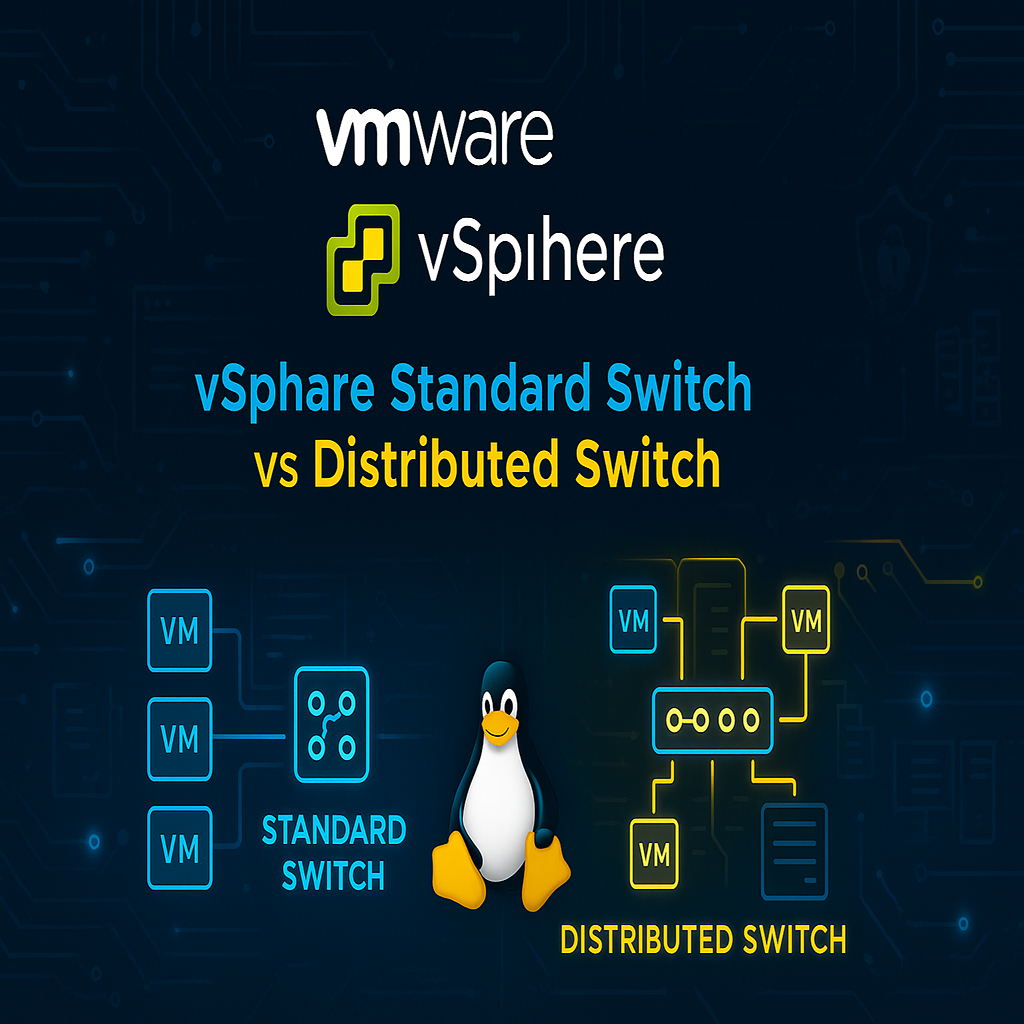
See the vSS/vDS comparison for switch selection and migration. Related guide
Best Practices
- Version-control configuration and review changes.
- Use least privilege and explicit allow-lists.
- Automate repeatable checks and monitor the expected state.
- Test upgrades and restores before production rollout.
Conclusion
A reliable implementation of Install ESXi 8 and Configure Management and Recovery is more than a successful first run. Keep the configuration documented, observable, recoverable, and aligned with the team's change-management process.
Frequently Asked Questions
Does a configuration backup include VMs?
No. VMs and datastores need separate backups.
Is a detected NIC necessarily supported?
No. Match model, driver, firmware and build to the compatibility matrix.